01 What TackNote is
A TackNote note is a sticky note that can hold more than words. One note can carry typed text, a checklist, a sketch, photos and videos, any number of voice recordings with their transcripts, a reminder and a place. You can record an hour-long meeting onto a note, watch the words land as people talk, see who said what, tap any line to hear that moment again, and on many recent phones have a summary written on the phone afterwards.
02 Getting TackNote
- Install TackNote from Google Play. On your phone, tacknote.app/android links straight to it too.
- Open TackNote. There is no account to make and nothing to sign in to. You land straight on your board, and your 7-day free trial starts.
TackNote needs Android 13 or later. It also runs on tablets and Chromebooks, where the board spreads across more columns.
03 The board
Your notes live on a corkboard as tilted paper cards, with the one you changed most recently first. The wooden rail along the bottom holds everything else:
- Notes: your board.
- Places: notes tacked to places, and a map of where notes were written.
- Record: start a recording in one tap.
- Folders: your projects and sub-folders.
- New: a fresh note.
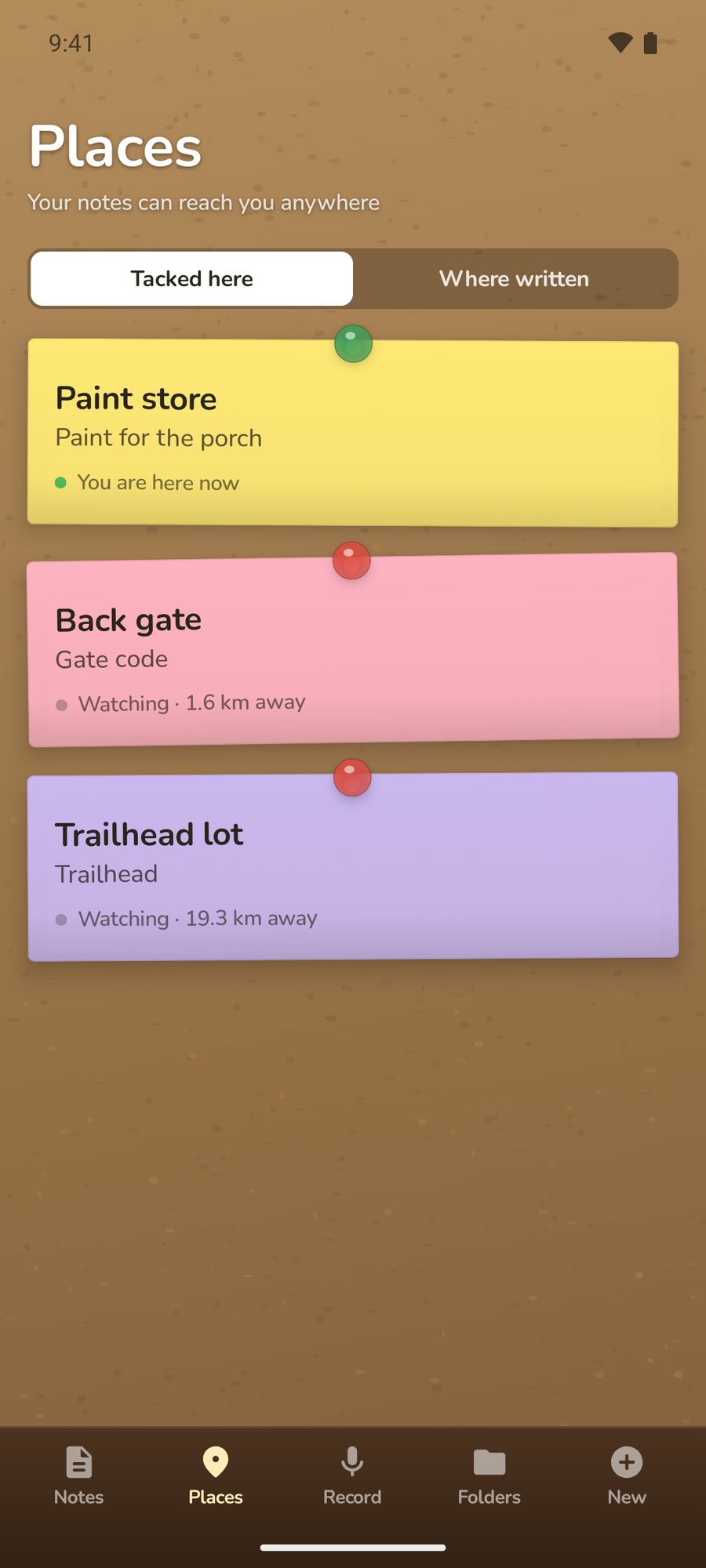
Each card shows its title, a preview of what is inside, the first photo, and small badges for recordings, photos and a place. When you are standing at a note's place, its tack turns green.
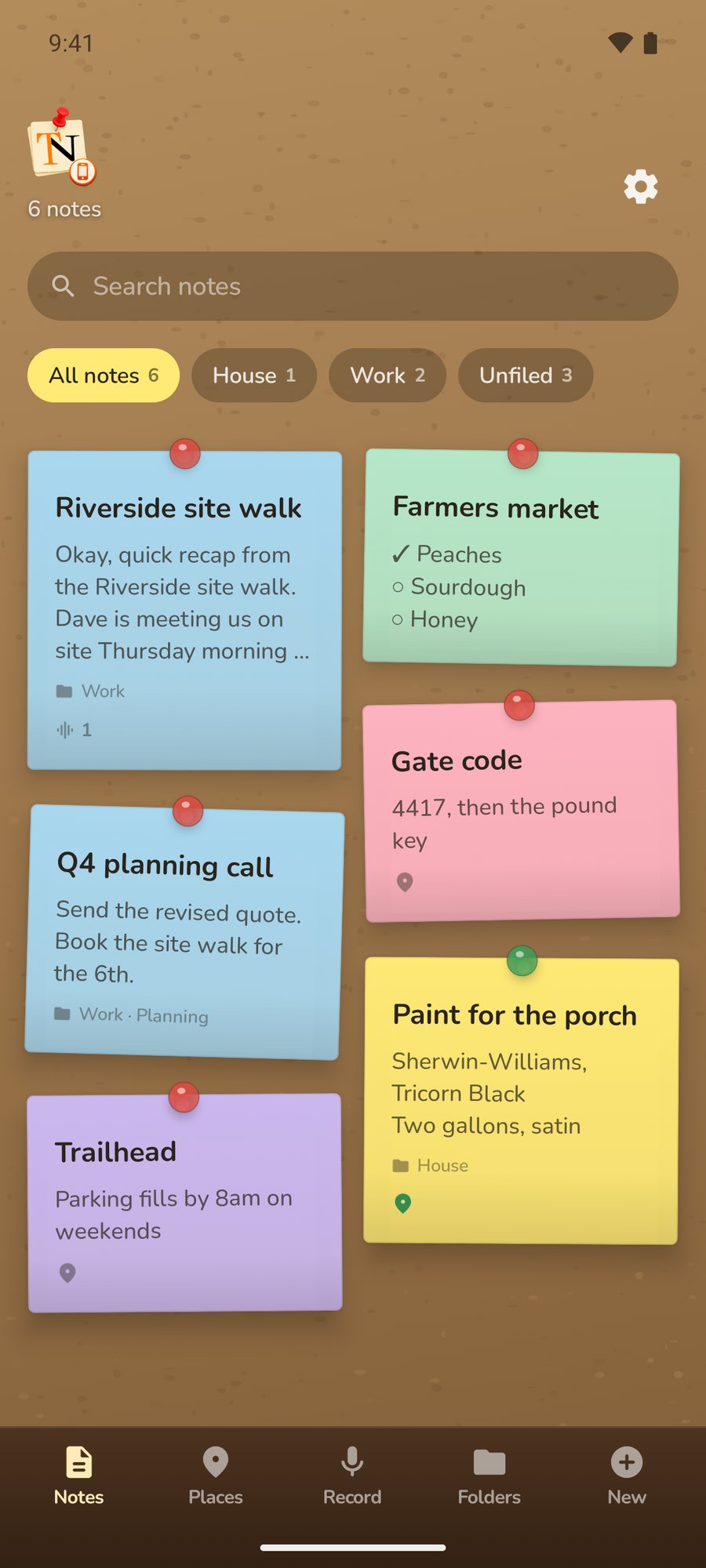
Search
Type in Search notes at the top of the board. Search looks through every folder at once: labels, text, checklist items, recording and video transcripts, and place names.
Filtering by folder
Once you have projects, chips appear above the board: All notes, one chip per project, and Unfiled. Tap a project to see only its notes, and a second row of chips for its sub-folders.
To file a note without opening it, press and hold its card and drag it onto a chip. Drop it on All notes or Unfiled to take it out of every project.
Settings
Tap the TackNote logo or the gear at the top of the board to open Settings.
04 Writing a note
Tap New on the rail. Every new note gets a paper color you have not used on your last three notes, so neighbors on the board are easy to tell apart. A note you close without putting anything in it simply goes away.
Give it a label in the Label… line if you like, and write in Write it down… below. If there is no label, the note takes its title from its first line or first checklist item.
Four ways to write
The pill at the top switches how the note is written:
- Text: an ordinary note.
- Checklist: tap a box to tick an item, press Next on the keyboard for the next one, or tap Add an item. Tap the x on an item to remove it.
- Split: text above a checklist, for a note that needs both.
- Draw: sketch with your finger. The brush button clears the whole sketch at once, and there is no undo, so tap it only when you mean to start over.
The tool row
The buttons along the note, which scroll sideways on smaller phones:
- Text size: make the writing bigger or smaller.
- Colour: six paper colors.
- Remind me: a reminder (see Reminders).
- Record: record onto this note.
- Camera and Pictures and videos: add pictures and videos.
- Summarise: write a summary, on phones that can (see Summaries).
- File it: choose where the note lives.
- Tack to a place: pin the note to where you are.
- Make this note private: the lock at the end of the row (see Private notes).
Tap Board at the top, or use Back, to close the note. Everything saves as you go.
Throwing a note away
Tap the trash at the top of a note. TackNote asks first, because the note's pictures and recordings go with it.
Private notes
For a note nobody else should read, such as a door code or account details, tap the lock at the end of the tool row, Make this note private. TackNote first asks for your phone's own screen lock: a fingerprint, or your PIN, pattern or password. If your phone has no screen lock yet, TackNote says so, because without one you could never open the note again.
A private note shows Private note. Unlock to read. on the board, in search, in Places, in transcripts and when you try to share it. Tap Unlock and use your screen lock to read it. Private notes lock again every time you leave TackNote. While a private note is unlocked on screen, Android does not allow screenshots of TackNote, and reminders and place alerts for a private note never show its words. To make a note ordinary again, open it and tap the lock, Make this note public.
05 Pictures & videos
Tap Camera and choose Take a picture or Record a video. TackNote opens your phone's own camera, and what you shoot lands on the note. Tap Pictures and videos to add up to 10 at a time from your phone.
- Tap a photo to see it full size. Swipe between photos, pinch or double-tap to zoom, and swipe down or tap the x to close.
- Tap a video to play it full screen.
When you add a video, TackNote listens to it on your phone and writes down what was said. You will find it under What was said in the video.
06 Recording & transcripts
TackNote records meetings, calls and passing thoughts, and writes down what is said as it is said, using your phone's own speech recognition.
From the Record tab
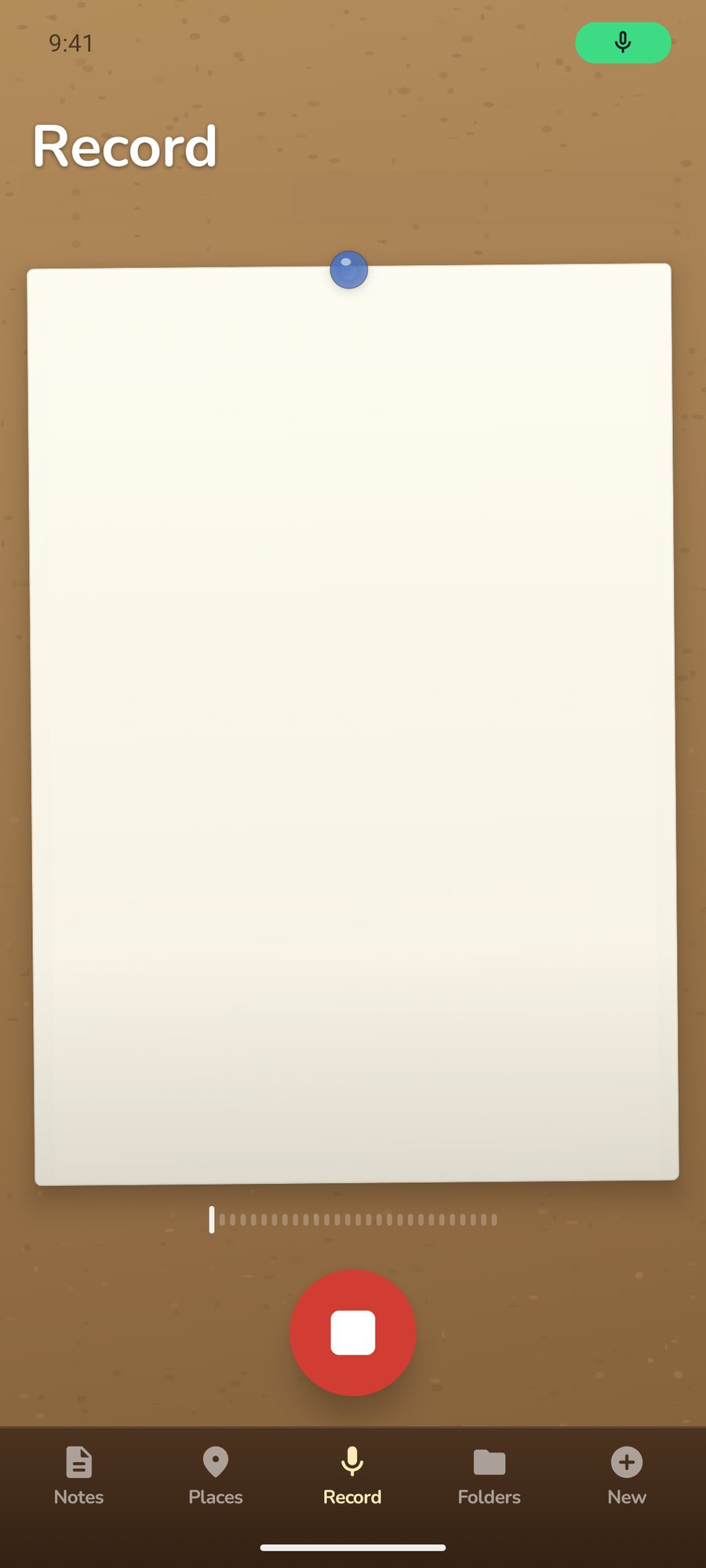
- Tap Record on the rail, then the big red button.
- Talk. The words appear as you speak, and a meter shows TackNote can hear you.
- Tap the button again to stop. TackNote turns the recording into a new note and opens it.
Onto a note you already have
Open the note and tap Record. When you stop, the transcript is added to the end of the note's text, or as a new item if the note is a checklist. If you close the note while it is still recording, the recording stops and stays on that note.
The first time you record, Android may need to download a language pack for its speech recognition. Recording carries on while it does, and TackNote shows Getting the language pack ready….
Reading and using a transcript
Each recording on a note has a play button, its length, and the first words of what was said. Tap those words to open the whole transcript under What was said. Press and hold them instead to add the whole transcript straight to the note, with speaker names when the recording has them.
At the bottom of the transcript, Copy puts it on your clipboard and Add to note adds it to the note. Tap Done to go back.
Tap a line to hear it
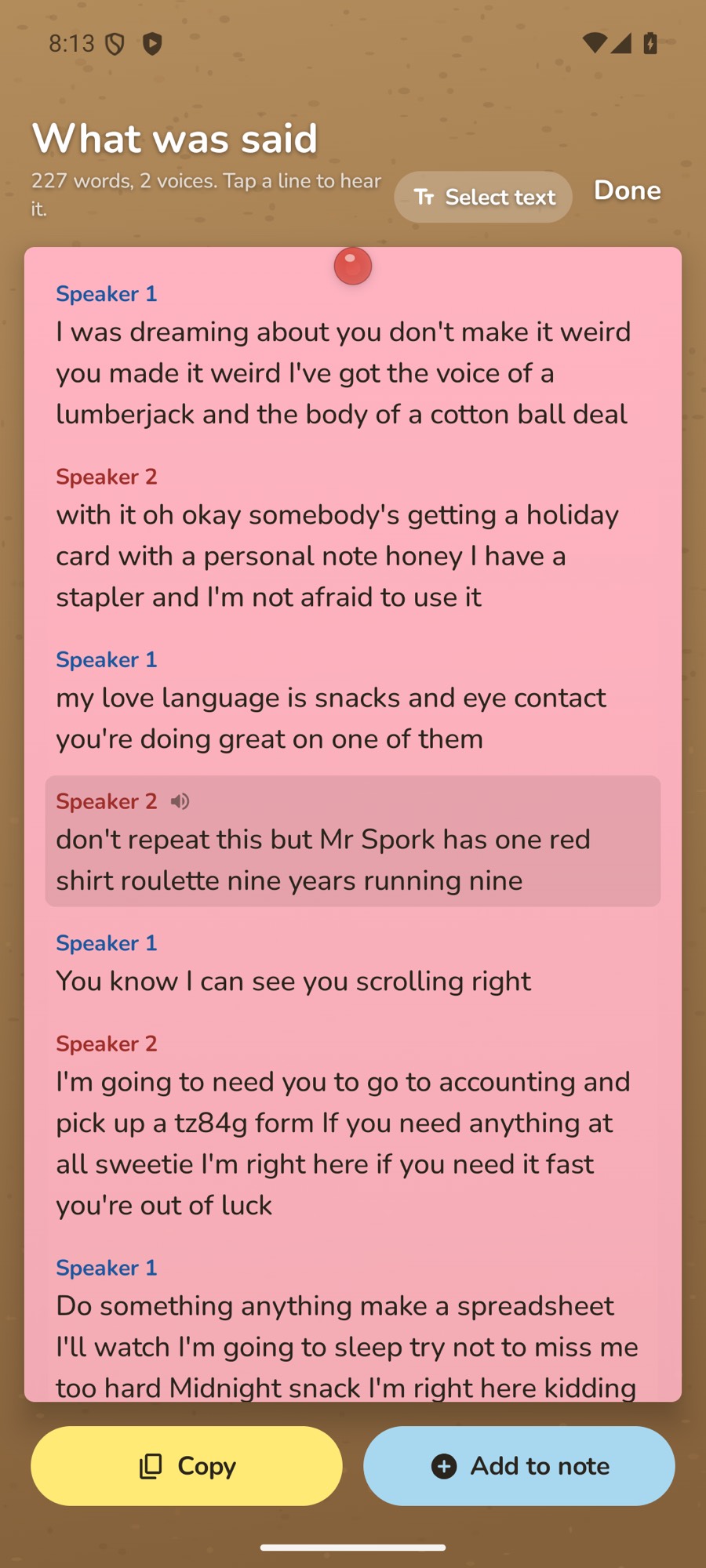
A transcript is shown as lines, one for each thing said. Tap a line and the recording plays from that moment. The line being heard is highlighted, with a small speaker mark next to it, and the highlight moves along as the recording plays. Tap the highlighted line to pause, and tap it again to carry on. Tap any other line to jump there. Playback stops when you close the transcript.
Selecting exact words
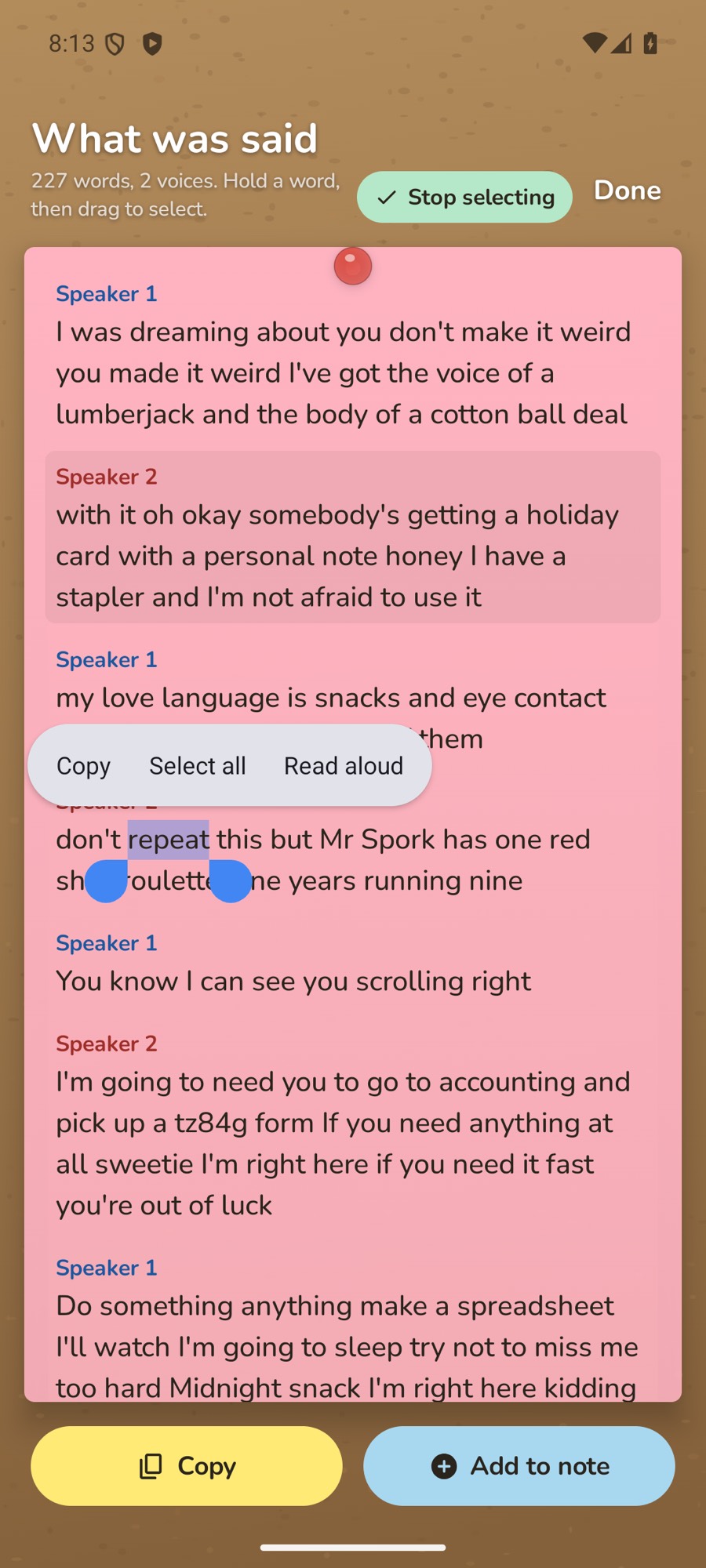
Because a tap plays a line, selecting text has its own switch. Tap Select text at the top of the transcript. Playback pauses, and you can hold a word, then drag to select, across as many lines as you like, and copy just those words. Tap Stop selecting to go back to tapping lines to hear them. Select text is off each time you open a transcript.
Transcripts without timing, such as the words from a video, appear as one block of text that you can select straight away.
Who said what
After you stop a recording, TackNote listens to it again on your phone to work out how many people were talking. While it works, the recording shows Labelling speakers… with how far along it is. It works only while TackNote is open on your screen. If you leave the app it pauses, and it picks up where it left off the next time you open TackNote, so a long meeting may take more than one visit.
When it hears two or more voices, the recording says how many, for example 2 voices. Tap to see who said what. In the transcript each change of speaker starts a new line under a name: Speaker 1, Speaker 2 and so on, in the order people first spoke. Each name has its own color, and the name is always written too.
- To name someone, open the transcript and tap their name.
- TackNote asks Who is this? Type the name.
- Tap Save. Every line that voice spoke in this recording takes the name.
Names stay with that one recording. Copy and Add to note include them, so what you paste reads like a conversation. While Select text is on, tapping a name does nothing, so that you can select it.
If TackNote closes mid-recording
Nothing is lost. The next time you open TackNote it says We got your recording back and saves what it had as a note labeled Recovered recording. Tap Open it to go straight there.
07 Summaries
On phones that support it, a Summarise button appears once a note has a recording or a video with words in it. Tap it and TackNote writes a three-point summary at the top of the note. The transcript and the recording stay exactly as they were.
Summaries are written by Google's on-device model, on your phone, and are marked written on this phone, not sent anywhere. They need a recent phone with on-device AI, such as a Pixel 9, Galaxy S25 or OnePlus 13 and newer, and your phone's language set to English, Japanese or Korean. The first time, your phone may need a moment to get the model ready. If your phone cannot make summaries, the button simply does not appear.
08 Folders
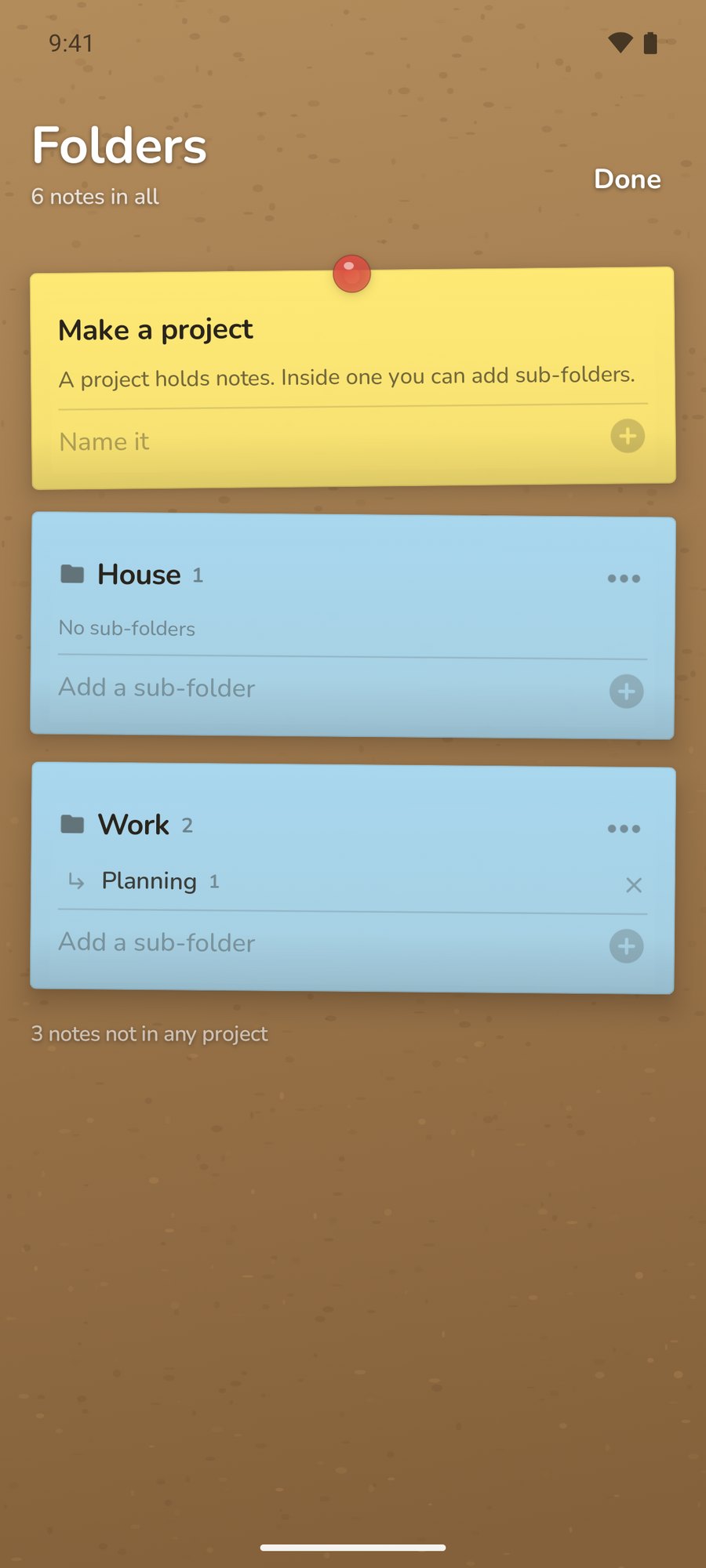
Notes can live in a project, and inside a project in a sub-folder. Anything you do not file stays on the board.
- Make a project: tap Folders on the rail and type a name under Make a project.
- Add a sub-folder: type it under the project in the same sheet.
- Rename or take away a project: tap its … button. Taking a project away never deletes its notes. They go back to the board.
- File a note: open it and tap File it, or drag its card onto a chip on the board.
09 Reminders
Open a note, tap Remind me, pick a day, tap Next, pick a time and tap Set. When it is due, your phone shows a notification with the note's title and Your note is due. Tap it to open the note. Reminders survive a restart of your phone.
10 Places
Tack a note to a place and it waits there for you. The paint color, at the hardware store. The gate code, at the gate. The thing you always forget, at the door you always forget it behind.
Tacking a note to a place
- Stand where the note belongs, open it, and tap Tack to a place.
- The first time, tap Allow location. TackNote explains what it uses location for, then Android asks.
- Give the place a name under Call it something, such as "The hardware store".
- Use How close is close enough? to choose how near you need to be, from 100 to 500 meters. 150 meters suits most shops and buildings.
- Tap Tack it here.
A note is tacked to where you are standing when you tap the button. To move it, stand at the new spot and tap Move it here. Untack this note removes the place.
Getting place alerts with TackNote closed
At first a tacked note can only reach you while TackNote is open. For it to find you when the app is closed, tap Allow all the time in the place sheet, and on the next screen choose Allow all the time. TackNote uses this only to notice when you reach a place you tacked a note to.
The Places tab
Tacked here lists every note with a place, nearest first, and what TackNote is doing about each one:
- Watching, or Watching · 300 m away: ready to tell you when you arrive.
- Watching while TackNote is open: location is not set to all the time yet.
- You are here now: you are inside its circle.
- Too far away right now. It will start watching as you get closer. TackNote watches the 90 nearest places and swaps them as you move.
- Not watching yet. Location is off. Tap Turn on location.
Where notes were written
Separately from places, TackNote can remember where each new note was written and show them on a map under Places > Where written. It is off until you turn on Remember where notes are written in Settings. Only notes written after you turn it on appear, and the spot never changes once a note is made. Nearby pins group together with a count; tap a group to zoom in, or a pin to open its note.
11 Home Screen widget
Keep a note in sight on your Home Screen: the shopping list, the packing list, the thing you keep meaning to do.
Adding the widget
- Touch and hold an empty spot on your Home Screen, then tap Widgets.
- Find TackNote and its Note widget. Touch and hold it and drag it where you want it, or tap Add if your phone offers that.
- It starts out showing the note you edited last. To choose a different one, touch and hold the widget and tap the pencil, or your phone's widget settings. The words on these buttons vary from phone to phone.
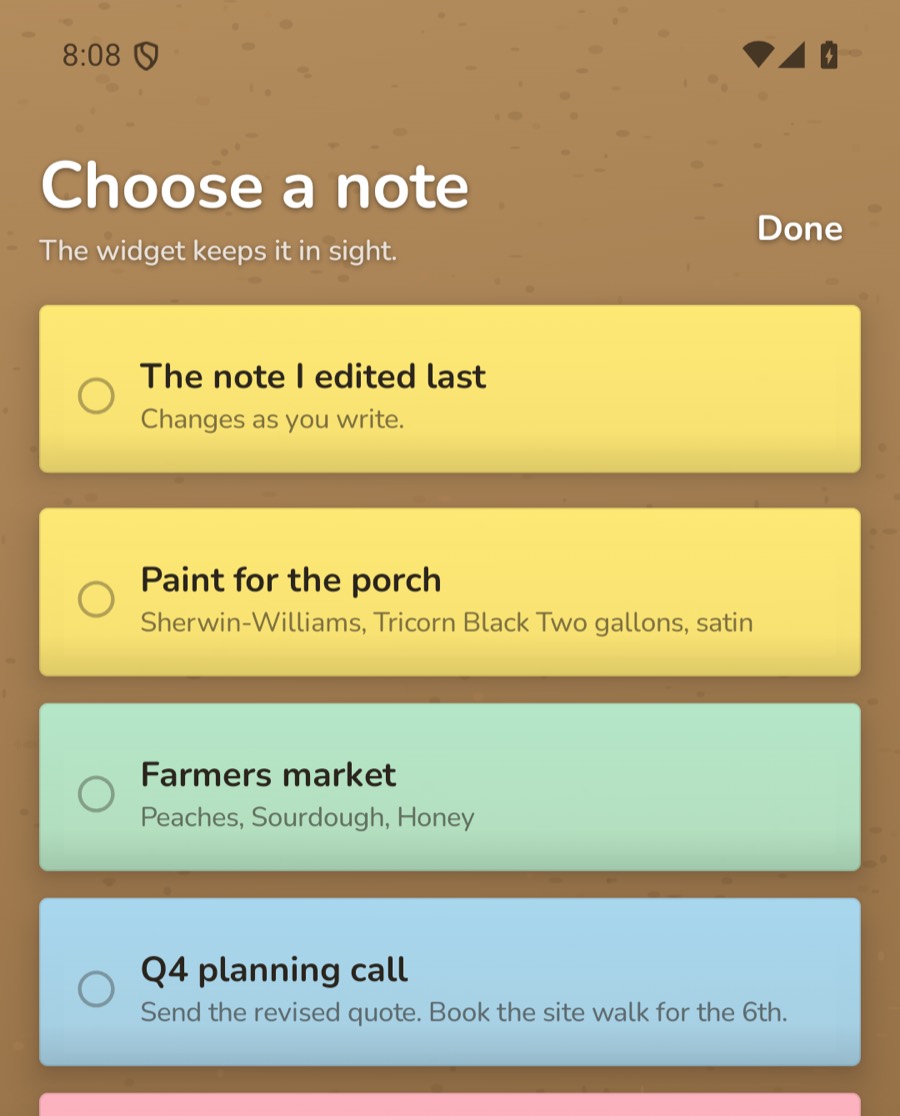
- Under Choose a note, tap the note to keep in sight, or The note I edited last to have the widget follow whatever you are working on.
What it shows
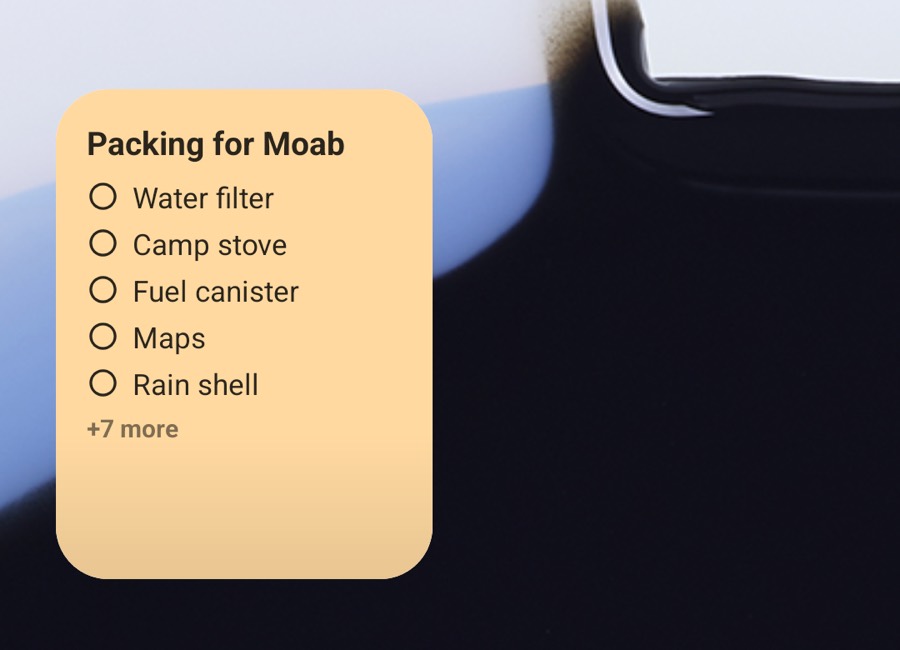
The widget shows the note on its own paper color: the label, then the text or checklist. On a checklist that does not fit, the items still to do come first, and a line such as +7 more says how many are left out. Drag the widget's edges to make it bigger and it shows more. It updates by itself when you change the note in TackNote. Tap the widget to open the note.
- Private notes. A private note never appears in Choose a note, and The note I edited last skips private notes. If a note on a widget is made private later, the widget shows only its paper color, a lock and Private note, even while you have private notes unlocked in TackNote. Tap it to open the note in TackNote.
- This note was deleted. If you throw away the note a widget shows, the widget says so. Tap it to choose another.
- Open TackNote once. A widget added before you have opened TackNote asks you to do that first.
12 Sending a note
Tap the Share button at the top of a note and choose how to send it:
- Send to a TackNote user: a single .tacknote file that keeps everything, including the color, ticks, place, folder, pictures and recordings. Whoever opens it in TackNote on their Android phone gets the whole note.
- Send as a PDF: a tidy document with the title, date, place, text, checklist, pictures and transcripts. Videos appear as a still frame.
- Share as text and files: the words as plain text, plus the actual photos, videos and recordings.
13 Your notes & backups
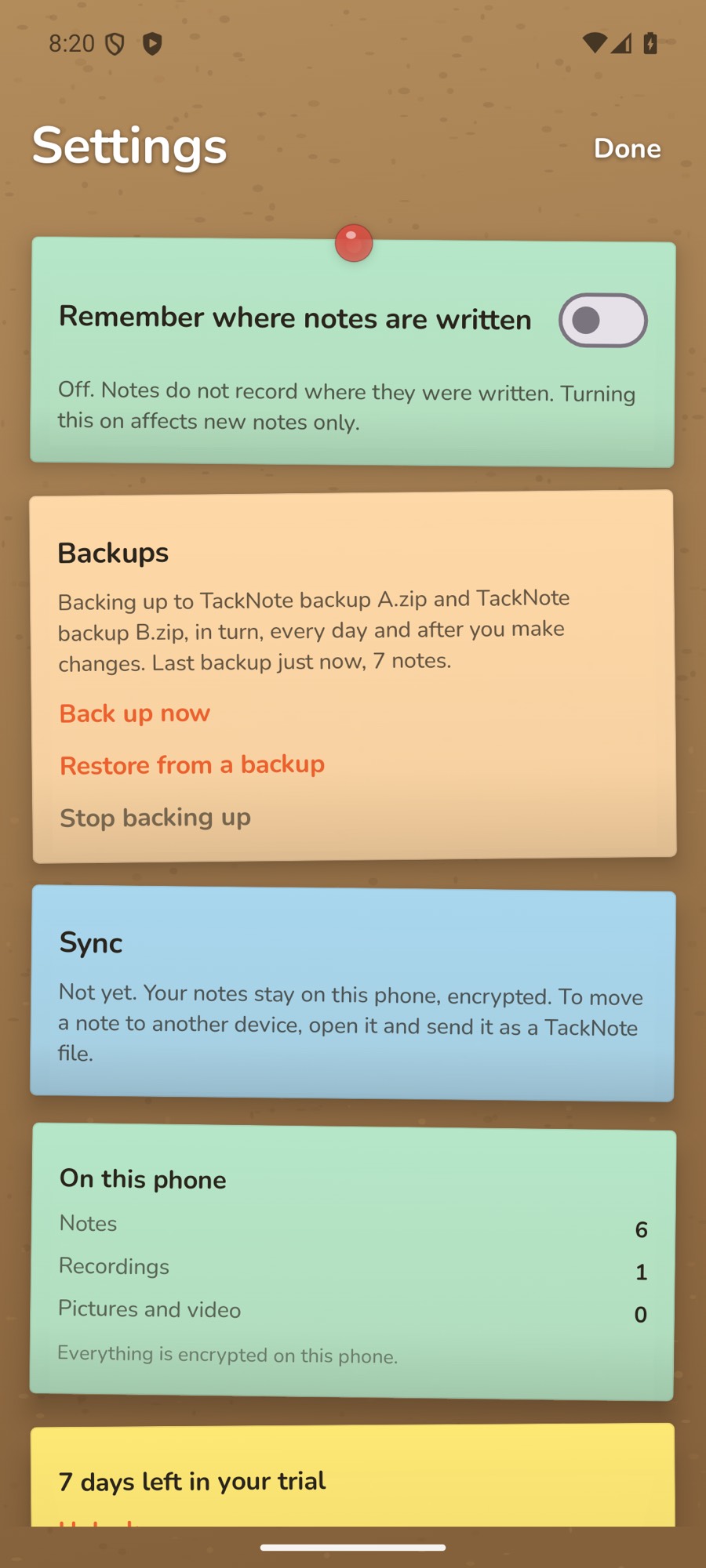
Your notes, pictures and recordings are encrypted on your phone. Settings shows how many of each you have under On this phone.
Automatic backups
TackNote can keep a sealed copy of every note, with its pictures, videos and recordings, somewhere you choose: on your phone, on a memory card, or in a cloud storage app such as Google Drive. Once backups are on, TackNote backs up every day and after you make changes, in the background. There is no account, and nothing is sent to us.
Open Settings and find Backups. There are two ways to back up:
- Back up to a folder: choose a folder with Android's file picker. TackNote makes a folder called TackNote Backup (Encrypted) inside it.
- Back up to files: for storage that does not offer folders, such as Google Drive. Use this one there.
Setting up backups to files
- In Settings, under Backups, tap Back up to files. TackNote explains that it saves to two files, A and B, taking turns.
- Tap Choose where. Android's file picker opens twice: once to save TackNote backup A and once for TackNote backup B. Pick the same place both times, such as a folder in Google Drive.
- Choose a passphrase (see below) and tap Continue. The first backup starts straight away.
Because each backup goes to the file that was not written last time, a backup that is cut off partway, say by a dead battery or a lost connection, never touches the last good one. If you only save one file, Settings says so and offers Add a second backup file.
Your backup passphrase
Your backups are sealed with a passphrase you choose, at least 8 characters, typed twice. Nobody can open them without it, including us. We cannot recover a forgotten passphrase, so keep it somewhere safe. You will need it to restore. Private notes are in your backups too, sealed like everything else.
Once backups are on, Settings shows where they go and when the last one finished. Back up now makes one straight away, and Stop backing up turns them off. Backups you already have stay where they are and still restore with your passphrase.
Restoring from a backup
- In Settings, under Backups, tap Restore from a backup.
- Choose Backup files (select both A and B if you have them) or A backup folder, then pick them in Android's file picker.
- Enter the passphrase the backup was made with and tap Continue. With two files, TackNote uses the newest one that is whole, and tells you which it used.
- A backup keeps its latest copy and one from each of the last 7 days. If there is more than one, choose under Which backup?
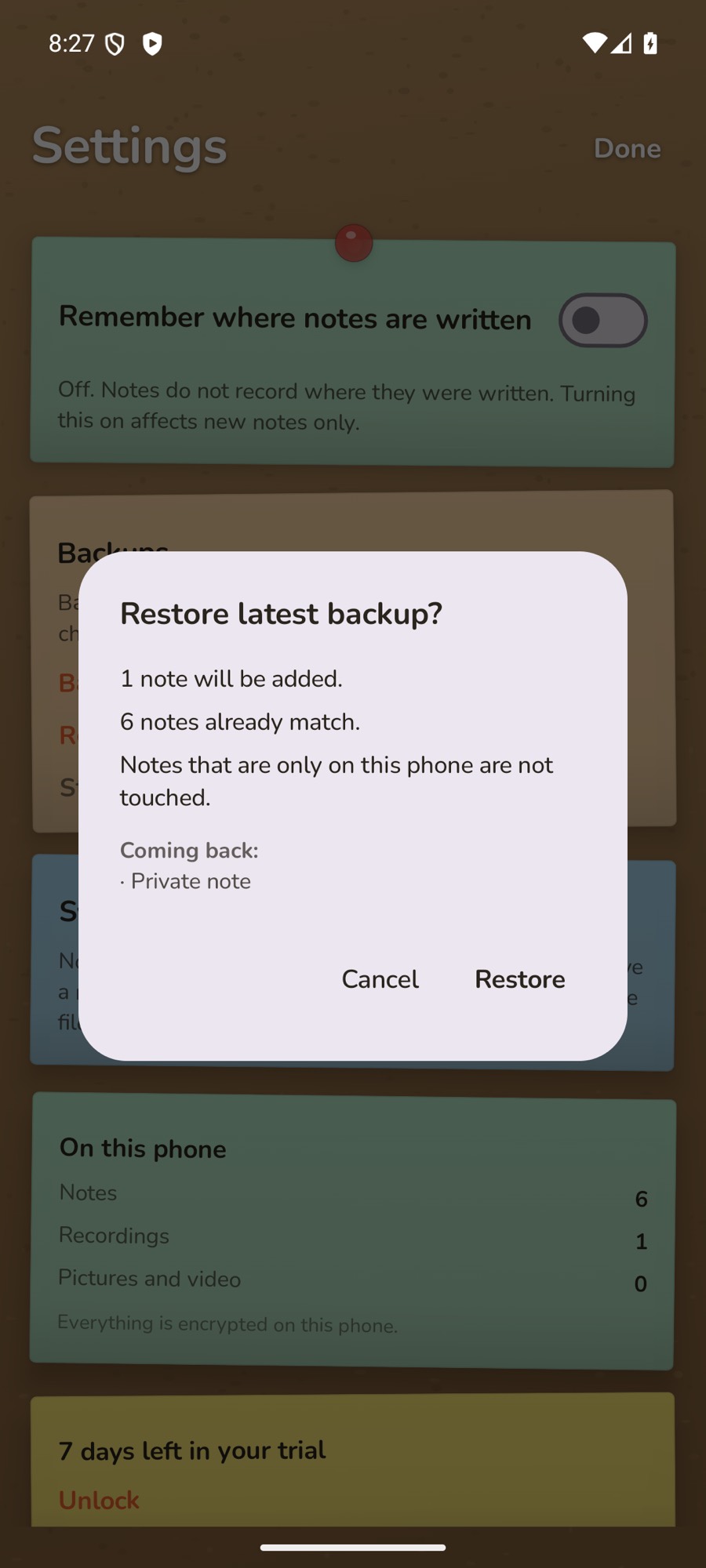
- Read what will happen, then tap Restore.
Before anything changes, TackNote shows what the restore will do: how many notes will be added, which notes on your phone are older than the backup and will be brought up to date, and which were changed after the backup and will stay as they are. Notes that are only on this phone are not touched. Under Coming back it lists the notes by title, and a private note is listed only as Private note while private notes are locked.
Moving to a new phone? Install TackNote, open it once, then restore from your backup with your passphrase.
Android's own backup
- Google backup. TackNote is included in your phone's Google backup only when that backup is end-to-end encrypted with your screen lock. Moving to a new phone with Android's own transfer brings your notes too.
- Sync. TackNote for Android does not sync with other devices yet. To move a note to another phone, send it as a TackNote file (see Sending a note).
14 Trial & unlock
TackNote is free for 7 days with everything turned on. After that, one payment unlocks it for good. There is no subscription. The price is shown in Google Play and on the Unlock button.
- In the last few days of your trial, a strip above the rail counts down. Tap Unlock, or open Settings.
- If you have bought TackNote before with your Google account, tap Restore a previous purchase.
When the trial ends
Your notes never go anywhere. TackNote becomes read only: every note still opens, and you can read, search, share and export them all. Writing new notes, editing, and adding recordings, pictures, reminders and places wait until you unlock.
15 Your privacy
- Encrypted on your phone. Your notes, pictures, videos and recordings are encrypted on your phone.
- No account. There is nothing to sign up for, and your notes are never sent to us.
- Private notes stay locked. A private note opens only with your phone's screen lock, and locks again when you leave TackNote.
- On-device listening. Transcripts, speaker labels and summaries are worked out on your phone.
- Your location stays on your phone. It is not sent to us or shared with anyone.
- Backups go where you choose. Backups are off until you turn them on, and go only to the folder or files you pick, sealed with your passphrase. If you pick a cloud storage app, that app uploads the sealed backup. We never receive it and cannot open it.
- What goes online. TackNote uses the internet only for your Google Play purchase, the map tiles on the Where written map, and getting Google's on-device summary model ready. None of these receive your notes.
Read the full privacy policy.
16 When something goes wrong
- TackNote needs the microphone to record. Turn on the microphone for TackNote in the Settings app, under Apps > TackNote > Permissions.
- Transcription is not available in this language here. Your phone has no speech recognition for its current language. The recording itself is kept.
- The language pack will download on Wi-Fi. Recording anyway. Transcripts appear once your phone has fetched its language pack. Your recording is safe meanwhile.
- On-device summaries are available in English, Japanese and Korean. Set your phone's language to one of these to make summaries.
- There is not enough here to summarise. A summary needs more than a sentence or two of transcript.
- Another note is recording. Stop that one first. Only one recording runs at a time.
- Labelling speakers… is not moving. Speaker labels are worked out only while TackNote is open on your screen. Keep it open for a while and it carries on from where it stopped.
- That passphrase does not open this backup. Check it was typed exactly as when you set up backups. We cannot recover a forgotten passphrase.
- Could not reach Google Play to fetch the price. Check your connection and open Unlock again.
- A tacked note did not alert me. Check the Places tab. If it says Watching while TackNote is open, tap Allow all the time (see Places), and check notifications are on for TackNote.
17 Getting help
Stuck, or have an idea? We would love to hear from you. Email support@tacknote.app. The FAQ answers the most common questions, and the changelog tracks what is new.
Using TackNote on a computer too? The Mac user guide and the Windows user guide cover the desktop apps.