Using a Windows PC? TackNote for Windows has its own guide: How to use TackNote on Windows.
01 What TackNote is
TackNote lives in your menu bar and lets you stick a note to a place instead of leaving it loose on your desktop. That place can be an app window, a specific web page, a Google Sheets tab, or a file. When you come back to that place, your note comes back with it. When you leave, it steps out of the way.
Your notes are yours alone. They are stored on your Mac and encrypted, there is no sign-up, and we never see what you write. TackNote is a one-time purchase with a free trial.
02 Installing TackNote
- Go to tacknote.app/download and enter your email address. That takes you to the download page, where you can download TackNote.
- Open the downloaded disk image and drag TackNote into your Applications folder.
- Launch it. Two marks appear in your menu bar at the top of the screen: the TackNote mark, and the board mark that opens TackBoard. They follow your menu bar, so they are dark on a light bar and light on a dark one.
- macOS asks for Accessibility the first time. TackNote needs it to see which window is in front, which is how a note stays with the thing you stuck it to. You can grant it later from Settings, under Permissions.
- A short walkthrough points out the essentials. You can replay it anytime from the menu, with Show Walkthrough.
03 Your first note
There are two ways to stick a note:
- Bring the window or page you want to annotate to the front.
- Press Control Option Command N, or click the TackNote mark in the menu bar and choose Stick Note to Current Window.
- A fresh note appears, already anchored to what was in front. Start typing.
That is the whole idea. The note stays tied to that window or page. Switch away and it hides. Switch back and it returns, right where you left it. There is nothing to save. Your note is written to disk, encrypted, as you type.
The shortcuts. TackNote starts with four, and the same actions are in the menu bar menu:
- Stick Note to Current Window: Control Option Command N
- New Floating Note, a desktop note that floats over everything: Control Option Command F
- Stack onto Current Window's Note: Control Option Command Shift N
- Capture Text from Screen, which reads the text in an area you select into a note: Control Option Command O
Choosing your own. Open Settings > Shortcuts, click a field and press a new combination. It needs Command, Option or Control. If you pick a combination another TackNote action already uses, TackNote refuses it and tells you which action holds it, so two actions never answer the same keypress. Each action can also have a spare mouse button (middle, back or forward). If a mouse utility has remapped that button, TackNote cannot see it, so set the button back to its default there or map it to TackNote's keyboard shortcut instead. Restore All Defaults puts the four shortcuts above back.
If you like to name a note before you write it, turn on Start a new note in the title, then Tab to the body in Settings, General.
04 Where a note sticks
TackNote can anchor a note to several kinds of place:
- An app window. Pin a note to a document, a design file, a chat, or any app window. It reappears when that window is in front.
- A web page. Pin a note to a page in your browser and it comes back when you revisit that address, even in a new tab or on another day.
- One Chrome tab. When the same page is open in more than one tab of Google Chrome, TackNote asks whether a new note is for this tab only or for every tab with that page. Right-click a note and choose This Tab Only to tie it to its tab later. Chrome forgets which tab is which when it quits, so when it reopens your tabs, each note goes back to the tab in the same position. Your answer can be remembered, and changed in Settings under Same page in several tabs.
- A Google Sheets tab. A note can bind to a single tab within a spreadsheet, not just the whole document, so each sheet keeps its own note.
- A file or folder. Keep a note attached to a specific file so its context travels with it.
- A code project. In Xcode a note sticks to the project, and in VS Code to the workspace folder. It stays put as you move between files, so switching editor tabs never leaves it behind.
- One thing inside an app. In many apps a note sticks to the thing you have open rather than the whole app: an email in Mail, Outlook or Gmail, a channel or chat in Slack and Microsoft Teams, a conversation in Messages, a page in Notion, a channel in Discord, a task in ClickUp, an album in Photos, and the open document or project in Affinity, Blender, Fusion and Logic Pro. Click the note's pill and TackNote takes you back to that exact email, page or project where the app allows it.
- A Finder view. Recents, Shared and AirDrop are not folders, so TackNote asks whether to stick the note to that view or make it a desktop note.
- A whole document or just one part. When a document has parts, such as a spreadsheet with tabs, TackNote can ask whether a note is for the part or the whole thing. Choose your answer once in Settings under Document scope, or right-click a note and choose to tack it to the whole document.
- Your desktop. A desktop note is not tied to any window. It shows on every desktop and over full-screen apps, unless you right-click it and untick Show on All Desktops. It always comes back on the same screen. If you use more than one desktop, which one is remembered until you quit TackNote or restart. New Floating Note makes one straight away. When you stick a note with nothing in front to stick it to, TackNote makes a desktop note, and Desktop note layer in Settings decides whether it sits on the desktop or floats above all windows. While you have desktop notes, the menu bar menu can bring them all to the front, send them to the back, or tidy them into a grid.
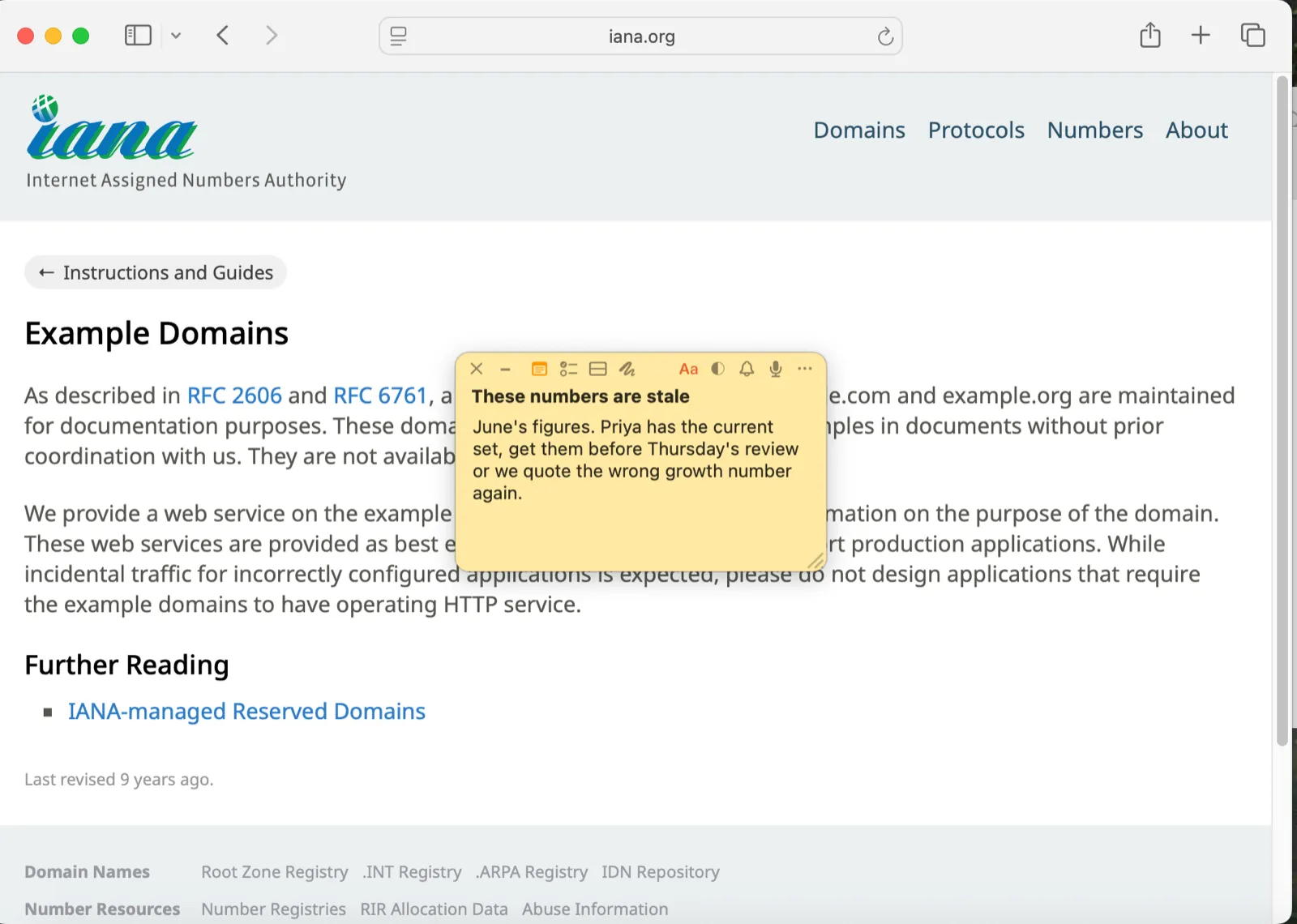
The binding pill
Each note shows a small pill that names what it is stuck to. Click the pill to jump back to that context, for example to reopen the page or bring the window forward. The pill is how a note tells you, at a glance, where it belongs.
Note pills: where your hidden notes are
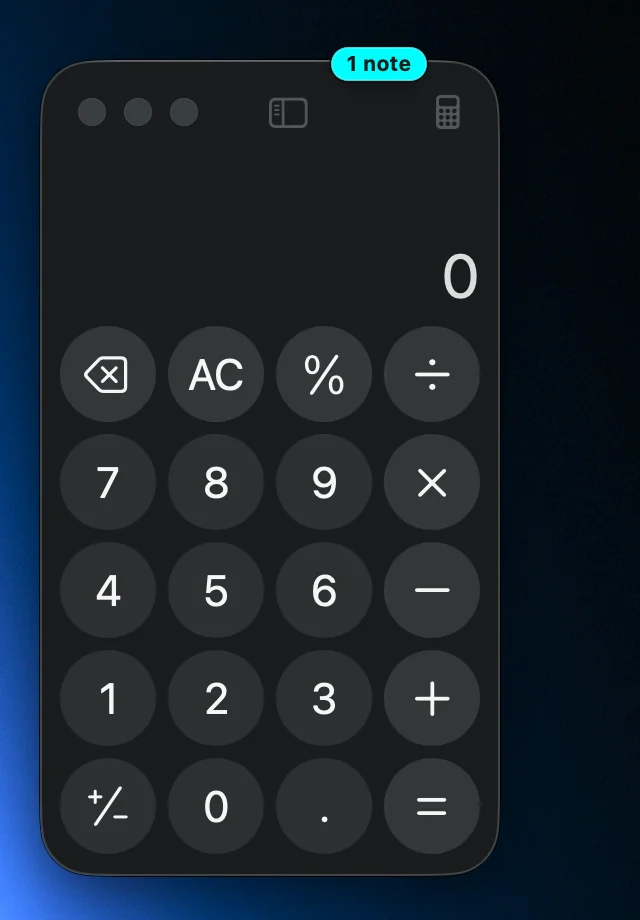
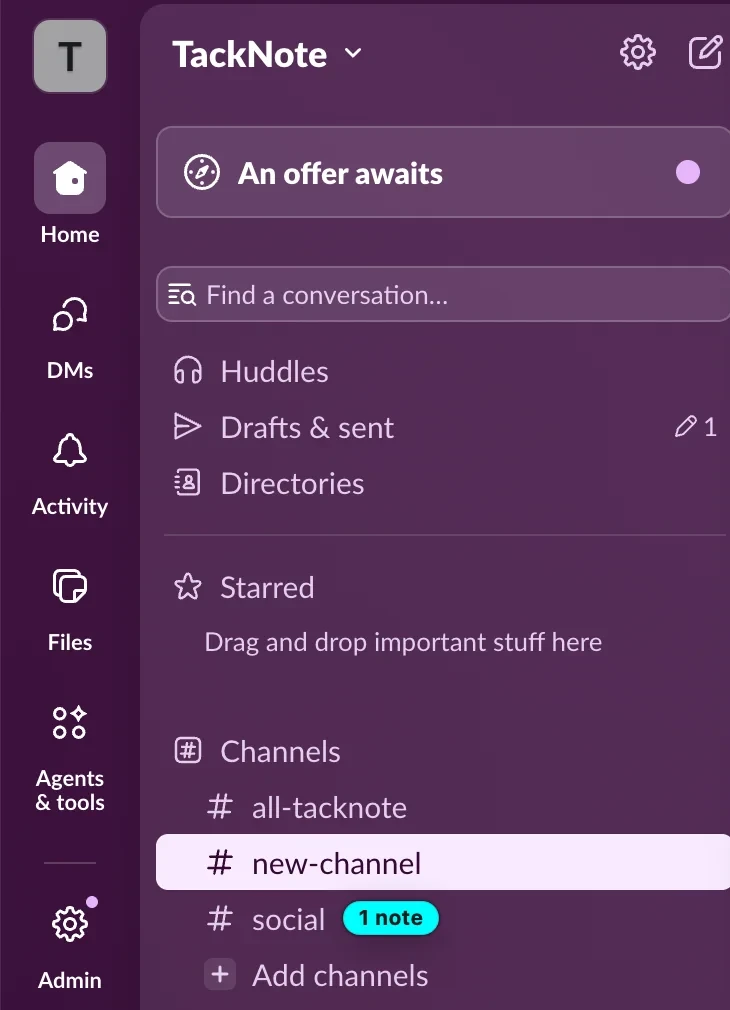
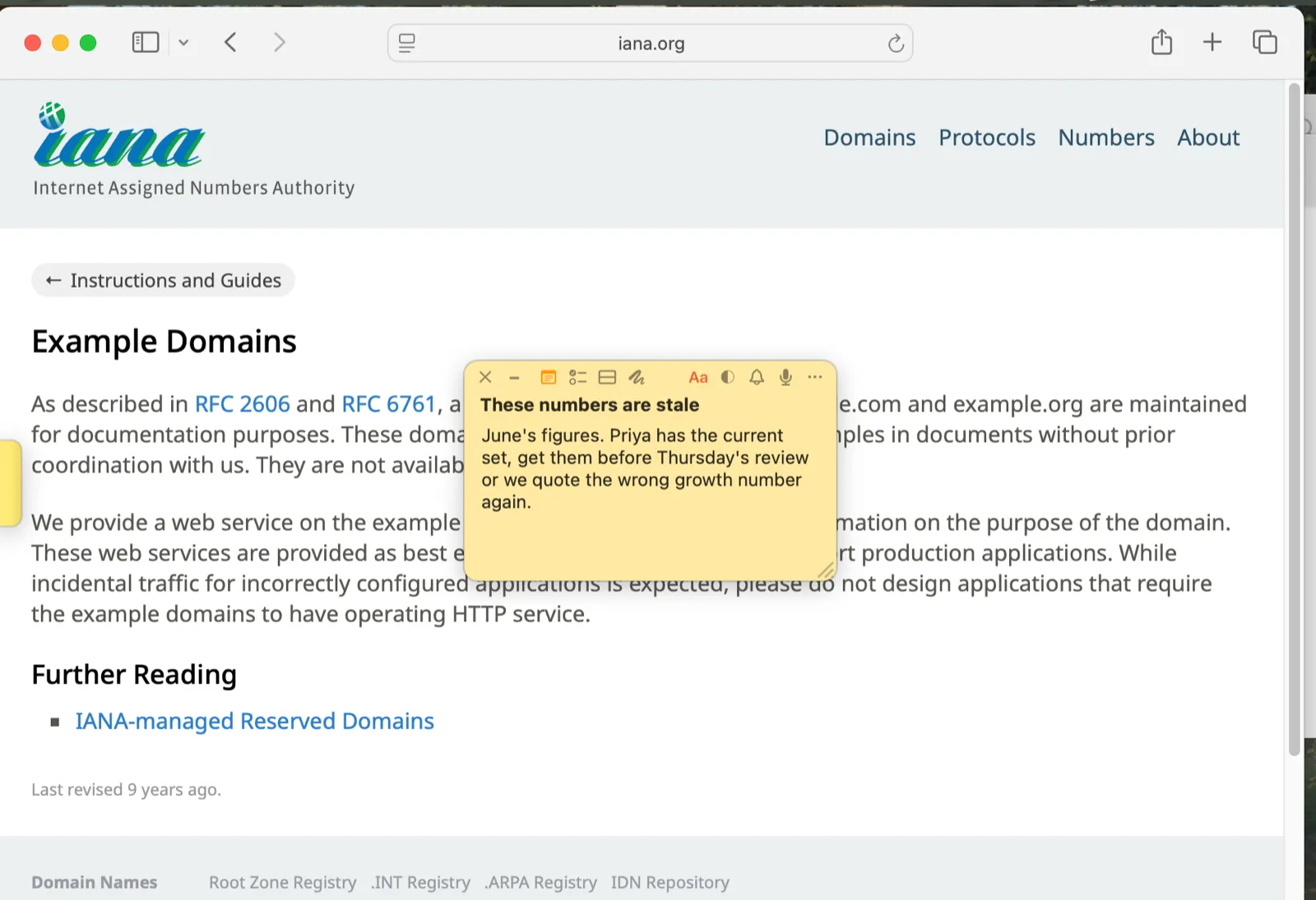
When you click into another app, a note steps aside so it never covers your work. The window it belongs to keeps a small "1 note" tag on its top edge, in the note's own color, so you can see where your notes are waiting. Click the tag and that window comes to the front with its notes.
- Browsers. In Safari, Google Chrome and Firefox the tag sits on the note's own tab, and clicking it opens that tab.
- Slack and Microsoft Teams. A note on a channel, chat or direct message puts its tag right next to that conversation in the sidebar, and the window shows how many notes it holds in all. Click a conversation's tag to open it, and its note comes back. While a picture or file you opened covers the sidebar, its tags step out of the way.
- Folders and documents. Finder folders, Messages conversations and documents get a tag on the window that shows them.
Tags on a sidebar fade out while you scroll and come back once the list stops. A window behind another window keeps its tag behind it too, so tags never float over the app you are using. To turn them off, open Settings and clear Show note pills.
05 Moving a note
Work moves. A note can move with it, keeping everything it holds. This is called re-sticking, and it lives on the note's own right-click menu rather than a toolbar button.
- Right-click the note body. Anywhere on the writing area or the colored background. Not the small icons along the top edge, which have menus of their own. If you prefer, Control-click does the same thing.
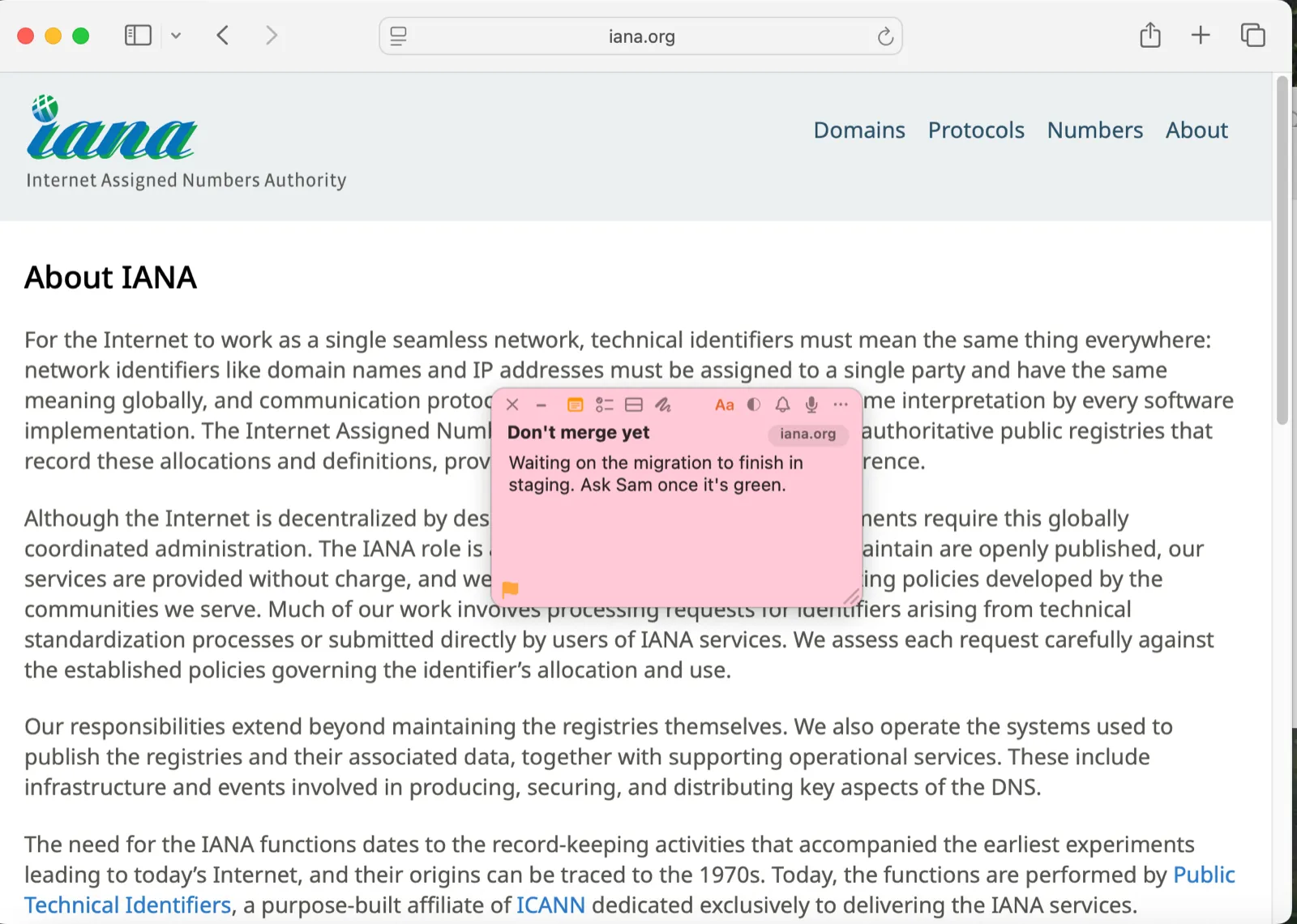
- Choose "Re-stick — pick a new home…". A banner confirms the note is armed, and the note now stays on screen while you move around instead of hiding with its old window.
- Go to the new home. Another window, a browser tab, a page, or a file. Take as long as you need. The banner stays up until you finish.
- Right-click the note again and choose "Stick Here". The note binds to whatever is in front of you now.
The note keeps its text, to-dos, color, reminders, and any flaps stacked behind it. Only what it is pinned to changes. To back out at any point, right-click and choose "Cancel Re-stick", or click Cancel on the banner.
Two things this is good for. Moving from staging to production: re-stick your notes to the live address in one move instead of rewriting them. Archiving a project: re-stick from the working folder to the archive, and the note goes with it.
When the thing a note was stuck to is gone
Close a window for good, delete a file, or retire a page, and the note is not lost. It lands in "Needs a Home" in TackBoard's sidebar, marked with an orange warning. Each card there has a Re-home button that starts the same carry: click it, the board steps out of the way, then go to the new home and choose "Stick Here". Nothing is deleted just because its home disappeared.
05b Stacking notes
More than one note can share the same home. When they do, they stack, and the stack shows a row of tabs across the top of the front note. Each tab carries that note's name, so you can tell them apart at a glance even when every note is the same color.
- Click a tab to bring that note to the front.
- Right-click a tab to rename that flap, or to peel it off from the menu.
- Press and hold a tab, then drag, to peel that note out of the stack into one of its own. The tab lifts and follows your cursor so you can see it coming. A quick click still just brings that note to the front, so an unsteady hand will not pull a note out by accident.
- The plus at the end of the row adds another note to the stack. So does Stack a New Flap on a note's right-click menu, or Stack onto Current Window's Note from the menu bar.
A stack of any size keeps its tabs. When there are too many for names to fit, the tabs show numbers, and a tab marked with three dots lists every note in the stack so you can jump straight to one. The tabs follow whichever theme you are using, so they match the paper, glass or comic look rather than sitting on top of it.
When you delete a note that is part of a stack, TackNote asks whether to close just that note or the whole stack. Either way, everything goes to Recently Closed on TackBoard, where you can restore it.
Unsticking a note
A note tacked to a window has an Unstick option in its right-click menu. It releases the note where it sits and turns it into a desktop note, which stays on screen instead of following a window. From there the usual desktop options are available, including Float Above All Windows and Show on All Desktops.
06 When a note goes missing
A note can be perfectly healthy and still be somewhere you cannot see it. The window it belongs to may have moved to a smaller screen, a display may have been unplugged, or the note may simply have ended up past the edge. Nothing is lost, and TackBoard can fetch it back.
One note
Open TackBoard, right-click the note's card, and choose Bring to Center of Screen. The note moves to the middle of the screen it belongs to and pulses so you can spot it. What it is stuck to does not change, so it keeps following its window afterwards.
Jump to Note does this too. It rescues the note first if it needs rescuing, then takes you to it, so it is usually the only thing you need.
All of them at once
Right-click an empty part of the board and choose Find Lost Notes. It brings back only the notes that are actually off screen and leaves everything you can already see exactly where it is. If nothing was lost, it tells you so rather than rearranging your desk.
Which one do I want?
- Bring to Center when the note is fine but you cannot see it.
- Re-stick when you want to move a note to a different window, page, or file on purpose.
- Re-home when the thing it was stuck to is gone entirely. These notes are gathered under "Needs a Home" in the sidebar.
07 Keeping TackBoard out of the way
TackBoard opens in the middle of the screen, which is exactly where your notes live. If you would rather it waited off to one side, it can.
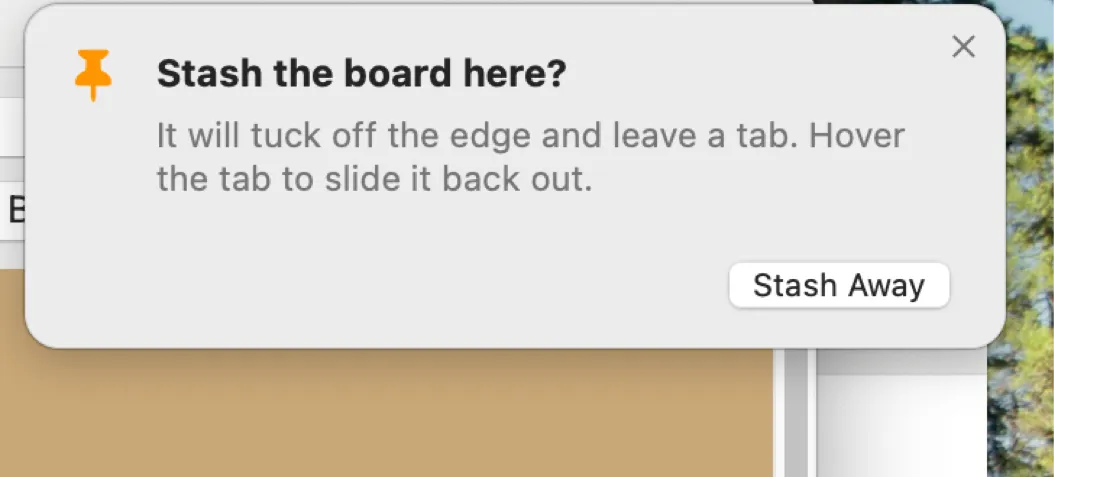
Right-click an empty part of the board, choose Swing Board To, and pick an edge. The board hides itself completely against that edge and leaves a small paper flag behind.
- Hover the flag and the board slides out.
- Pull the flag to draw the board out by hand, as far as you like. Let go past a third of the way and it stays open.
- Click the flag to keep the board open, and click again to send it away.
- Drag the board away from the edge and it becomes an ordinary window again.
There is also a stash button at the right-hand end of the board's control row. The first click asks which edge you want, so the board never goes somewhere you did not choose. Tick Make Default in that picker and it stops asking, and a single click sends the board straight to your edge from then on. Right-click the button to bring the picker back at any time, including Free, which turns the board into an ordinary window again.
Dragging an ordinary board against an edge also offers to stash it there. You can choose the flag's color in Settings, or let it follow your paper theme.
08 Writing notes
A note is more than plain text.
- Text. Type freely. Formatting stays simple and out of your way. Simple Markdown, such as # headings, bold, italic, inline code and links, is shown formatted when you click away from the note, and goes back to plain text while you edit.
- Notes, To-do, Split and Sketch. The small tabs along the top of a note switch between free text, a to-do checklist with its progress, Split view with both side by side, and Sketch for freehand drawing. Nothing is lost when you switch. Typing todo on a line of its own and pressing Return opens Split view too, and Settings lets you turn that off or put Split view top and bottom.
- Quick sums. Type a line like 12.50 + 4.75, 20% of 80 or 10 miles in km and press Return, and TackNote adds the answer to the end of the line. Turn it off in Settings with Solve math and unit conversions inline.
- Color. Click the color button on a note to cycle through your quick colors, or right-click it for swatches, the color wheel and opacity. Your default color, text color, opacity and quick colors are in Settings, General.
- The formatting bar. Click the Aa button on the note's toolbar to show the formatting bar: font, size (with smaller and bigger buttons), bold, italic, underline, text color and highlight. Select some words first to change just those. With nothing selected, font, size and text color change the whole note, and bold, italic, underline and highlight apply to what you type next. Text color and highlight open a grid of colors; the one in use has a ring around it, and Custom opens the full color picker. Text Color is still on the note's right-click menu too.
- Checklists. Use the To-do tab to track small to-dos in context, and tick them off as you go.
- Voice memos. Record a quick voice memo straight into a note. TackNote transcribes it on your Mac using Apple's on-device speech recognition, so the recording never leaves your Mac. If your Mac does not offer on-device recognition for your language, the recording is kept without a transcript. Right-click the microphone to play a memo, insert its transcript into the note, transcribe it again or delete it.
- Bullet lists. Press ⌘⇧8 to turn the current line, or everything you have selected, into a bullet list. Press it again to turn the bullets back off. It works the same way in a floating note and on a TackBoard card.
- Pictures. Capture part of your screen into a note, or paste and drop pictures straight in. They stay on the note as thumbnails along the bottom. Click one to see it full size, or right-click it for Copy Image and Delete Image. Hover over a picture or video and the note tells you what a click and a right-click do. Pictures are encrypted on your Mac the same way your notes are. Videos that arrive from your phone sit on the note the same way; click one to play it.
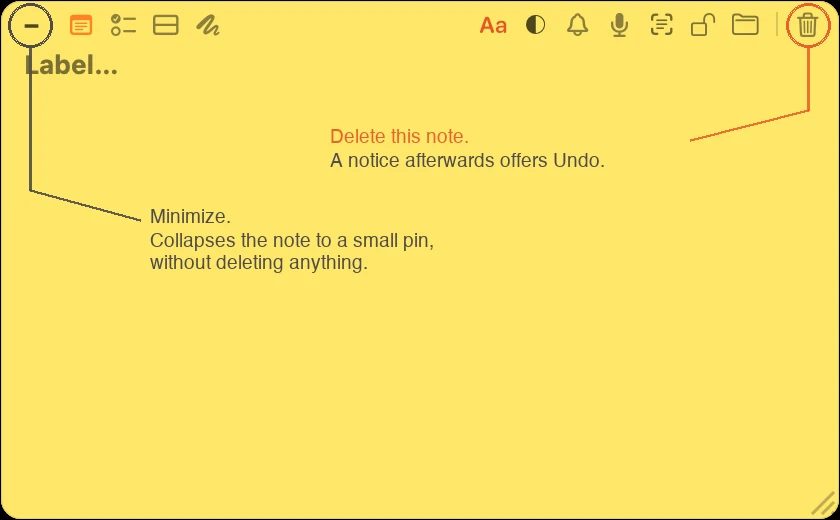
A note has a trash button on the far right of its toolbar. That button deletes the note, and TackNote tells you so afterwards with an Undo if you change your mind. A deleted note also waits in Recently Closed on TackBoard, where you can restore it later. To get a note out of the way without deleting it, use the minimize button on the left instead, which collapses it to a small pin.
09 TackBoard
TackBoard is your notebook: one place to see every note at once, whether or not you are near the window it belongs to. Open it from the menu bar.
- Every note appears as a card on a corkboard. A card and its floating note are the same note, so a change to one shows up in the other.
- Drag cards to rearrange them, group them, and collapse groups you are not using.
- Expand a card to read a longer note without leaving the board.
- Drag a card to the trash to delete the note, or use the trash button on the card itself.
- The sidebar narrows the board down: All Notes, To-dos, Reminders, Tacks with Photos for something you captured rather than typed, Needs a Home, Recently Closed, and your projects and apps.
- The search box looks through every note, checklist item and voice transcript.
- Group cards by app, project or sub-folder, and sort them by date updated, date created, priority or title. Right-click a card to give it a priority.
- Pick a background (cork, black, white or card board, or your own color), and switch to Compact for denser cards. Settings, General also offers a Chaos board that tilts the cards like a real corkboard.
- Recently Closed holds the notes you deleted. Restore one, or use Delete All to remove them for good.
- Click + Board note (or press Shift Command N with the board open) for a note that lives on TackBoard only, stuck to nothing. Type straight into its card. When you want it on a window, page or folder after all, right-click the card and choose Re-stick.
10 Projects & organizing
As your notes add up, projects keep them tidy.
- File a note into a project using the folder control on the note. A project can hold notes from any app.
- Create, rename and delete projects in TackBoard's sidebar. Right-click a project for New Sub-folder, so you can nest related work. Deleting a project asks whether to keep its notes or delete them too.
- Group and filter the board by project to focus on one piece of work at a time.
- Right-click a project and choose Make Private to lock every note in it at once. Notes in a private project stay on this Mac and are never synced.
11 Private notes
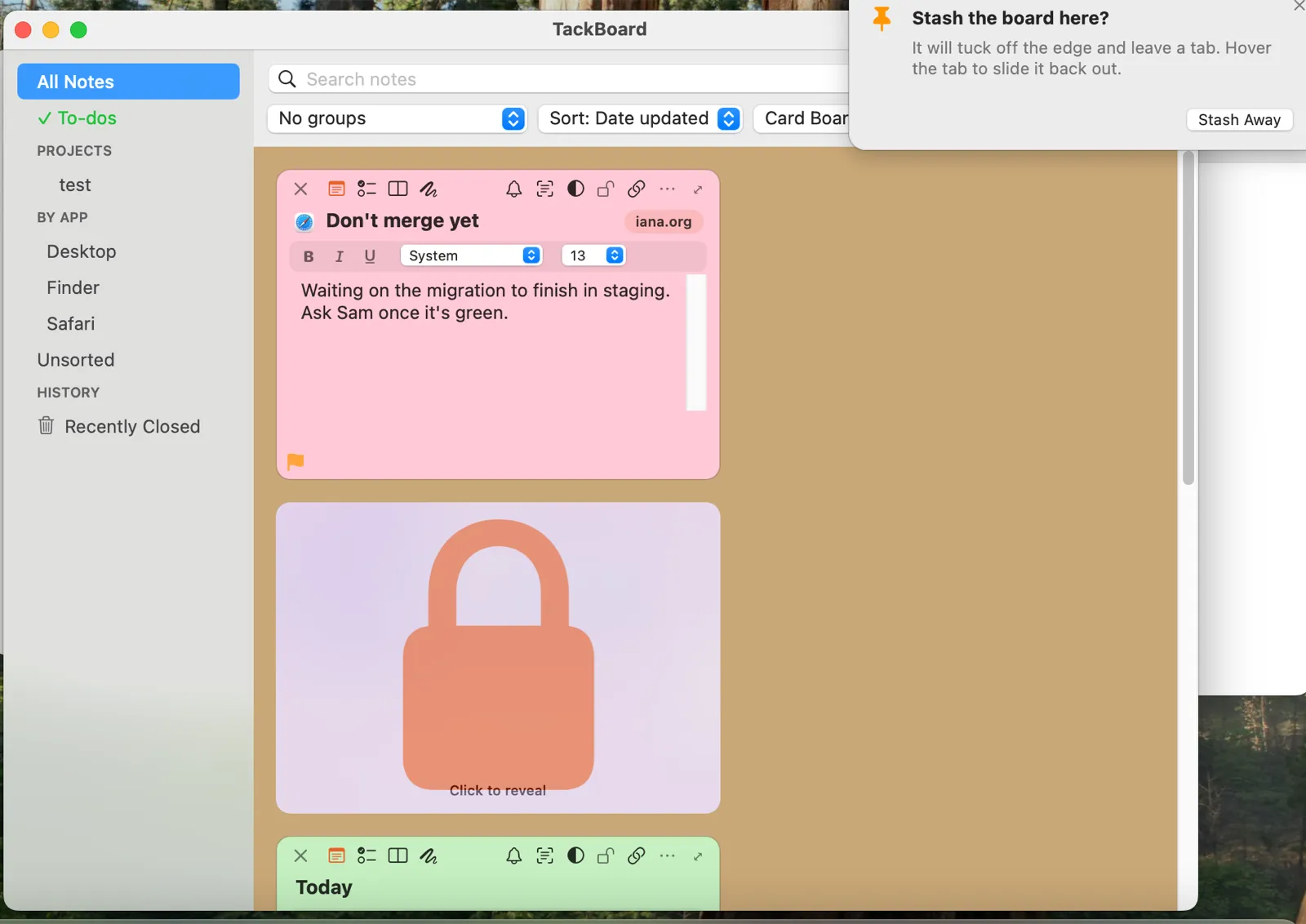
Some notes are for your eyes only. Tap the lock control on a note to make it private. A locked note is blurred until you unlock it with Touch ID or your password, so a glance over your shoulder shows nothing.
This is separate from filing: the lock icon controls privacy, and the folder icon controls which project a note lives in. You can use either, or both.
- Once you unlock, private notes stay open for the time you choose in Settings under Keep private notes unlocked for: 5, 15 or 30 minutes, 1 hour, or until your screen locks.
- To hide them again straight away, choose Lock Private Notes Now from the menu bar menu.
- A private note never leaves your Mac. It is left out of iCloud sync and out of the folder you share with Windows, and while it is locked the menu bar lists it only as Private note.
- Private notes stay out of screenshots and most screen sharing. TackBoard does too while it shows an unlocked private note.
Before a call, turn on Hide notes when sharing my screen in Settings, General. Your notes and TackBoard then stay out of screenshots and out of screen sharing in Zoom and Google Meet. Some recording tools can still see them, so before an important call or recording, try a quick test share first. Private notes are always hidden, whether this setting is on or off.
12 Reminders
Attach a reminder to a note and TackNote will nudge you at the time you choose, so a note can double as a gentle to-do tied to its context.
Click the bell on a note and pick In 1 hour, In 3 hours, This evening (6 PM), Tomorrow (9 AM), Next week, or Custom date & time, where a reminder can also repeat every day, every weekday, every week or every month. Nudge me next time I open this skips the clock: the next time you come back to the note's window or page, the note pulses and keeps a red glow until you click it.
Reminders arrive in Notification Center, so they reach you even when TackNote is quit or your Mac is asleep, as long as notifications are on for TackNote in System Settings. For reminders that stay on screen until you act, set TackNote to Alerts there.
When a reminder arrives and the moment is not right, you can snooze it from the notification itself: 15 minutes, an hour, tomorrow at the same time, or next week at the same time. Same time means the time the reminder was set for, so a nine o'clock reminder is still a nine o'clock reminder tomorrow. There is a Mark as Done on the notification too.
13 Themes & appearance
TackNote ships with a range of note skins. Choose one in Settings, General, under Paper Theme. They come in three families:
- Classic for clean, solid colors.
- Paper for warm, printed textures: Premium Sticky, Kraft, Ruled Notebook, Graph, Dot Grid, Linen and Comic.
- Glass for real translucent notes that let the desktop show through, in light, dark and neon versions, plus Prism.
The same pane sets the overall look: Appearance follows your Mac's light and dark setting or stays on one, and Program Theme switches TackNote's own windows between Classic and Modern. You can also choose the pin size and whether TackBoard's flag follows your paper theme.
14 Syncing your Macs
If you use more than one Mac, TackNote can carry your web-page notes between them through your own iCloud account. We run no servers for this and never see the contents. Turn it on in Settings, Data with Sync web notes across my Macs (iCloud), on each Mac signed in to the same iCloud account.
- Notes that are pinned to a web page sync across your Macs and re-find their page by its address. Notes on a Messages conversation travel too, since a conversation is the same on every Mac.
- Notes pinned to other app windows or to files stay on the Mac they belong to, since that window lives on that machine.
- Your notes are end to end encrypted, whether or not Advanced Data Protection is turned on for your Apple Account. Each note is sealed on your Mac with a key kept in your iCloud Keychain before iCloud sees it, so iCloud Keychain needs to be on. Settings, Data shows what sync is doing.
- Private notes, and notes in a private project, never leave the Mac they were written on. Making a note private also removes its copy from iCloud.
- Signing out of iCloud stops syncing but never deletes your notes. Sync Now in the menu bar menu syncs straight away.
Notes from your phone
TackNote for Mac is ready for notes from TackNote on your iPhone, which is coming to the App Store this month (October 2026). Sync is switched on in the phone app, through the same iCloud account as your Mac.
- A note from your phone arrives on your TackBoard, in a folder called From phone, and waits there. It is not stuck to anything until you stick it somewhere yourself.
- Everything on the note comes with it: text, checklists, pictures, voice recordings with their transcripts, and video. Click a video to play it.
- Notes you write on the Mac, notes you imported, and notes floating on your desktop stay on this Mac, exactly as before. Only notes that came from your phone travel back to it.
Syncing with Windows
Your Mac and your Windows PC can share notes through a folder you already sync between them, such as one in iCloud Drive, OneDrive, Dropbox or Google Drive. Everything TackNote keeps in that folder is encrypted with a passphrase you choose.
- On your Mac, open Settings, go to Data, click Sync with Windows through a Folder, pick the folder, and choose a passphrase.
- On your PC, open TackNote's Settings, go to Sync, choose the same folder and enter the same passphrase.
- Notes arrive with their pictures, voice recordings and videos.
- Private notes, and notes in a private project, never leave the computer they were written on. Making a note private also takes it off your other computers the next time they sync. There it moves to Recently Closed, which you can empty.
- A project your PC marks private stays private on your Mac too. If you choose Make Public for it on your Mac, TackNote asks first, and the PC keeps it private.
- If a lot of notes disappear at once, TackNote pauses and asks before sending that deletion to your other computers. If you meant it, click Sync with Windows in Settings, Data and choose Sync Now. The same button turns folder sync off.
14b Backups, import & export
Your notes live on your Mac, encrypted. Settings, Data holds the tools for keeping a copy and for bringing notes in.
- Safety Backups. Before each update, TackNote saves a copy of your notes, so if a new version ever misbehaves you can go back to how things were. Open Safety Backups to see them.
- Export Notes. Writes a portable backup, encrypted with a passphrase you choose. Keep the passphrase safe: you need it to restore, on this Mac or another one.
- Import Notes. Restores a TackNote backup.
- Import from Another App. Brings in notes from other note apps, and from Markdown, text, RTF and HTML files. Imported notes are filed under an Imported project so you can stick them where they belong.
Export and Safety Backups open once a license key is added, including during your free trial.
15 License & trial
TackNote is free to try for 7 days, with everything unlocked. When you are ready, one purchase covers up to three computers.
- After you buy, your license key arrives by email. Open License from the menu, paste the key, and TackNote activates on that Mac.
- To move a seat to a different Mac, just activate on the new one. If all three seats are in use, TackNote asks which Mac to disconnect and moves the seat across for you. You do not need the old Mac to hand, so replacing, selling or wiping a machine never strands your license. Its notes stay on that Mac and nothing is deleted.
- To free a seat yourself, open License and choose Deactivate this Mac.
- During the trial, the menu bar menu shows how many days are left.
- Your license works offline for 60 days after its last check with our server, and every check starts a new 60 days. In the last 7 days TackNote asks you to connect once. After 60 days your notes stay readable, and you can still copy and export them, until your Mac connects again.
16 Updates & rollback
The version from tacknote.app keeps itself up to date and installs new versions for you. To look for one now, choose Check for Updates from the menu.
For 48 hours after an update, the menu offers Roll Back to TackNote with the previous version number. If a fresh update ever feels off, choose it and TackNote switches back and relaunches, with your notes untouched. If all is well, Looks Good, Keep This Version clears the offer.
17 Permissions macOS asks for
macOS asks your approval before TackNote can do a few things. Each request maps to one feature, and nothing is ever sent to us:
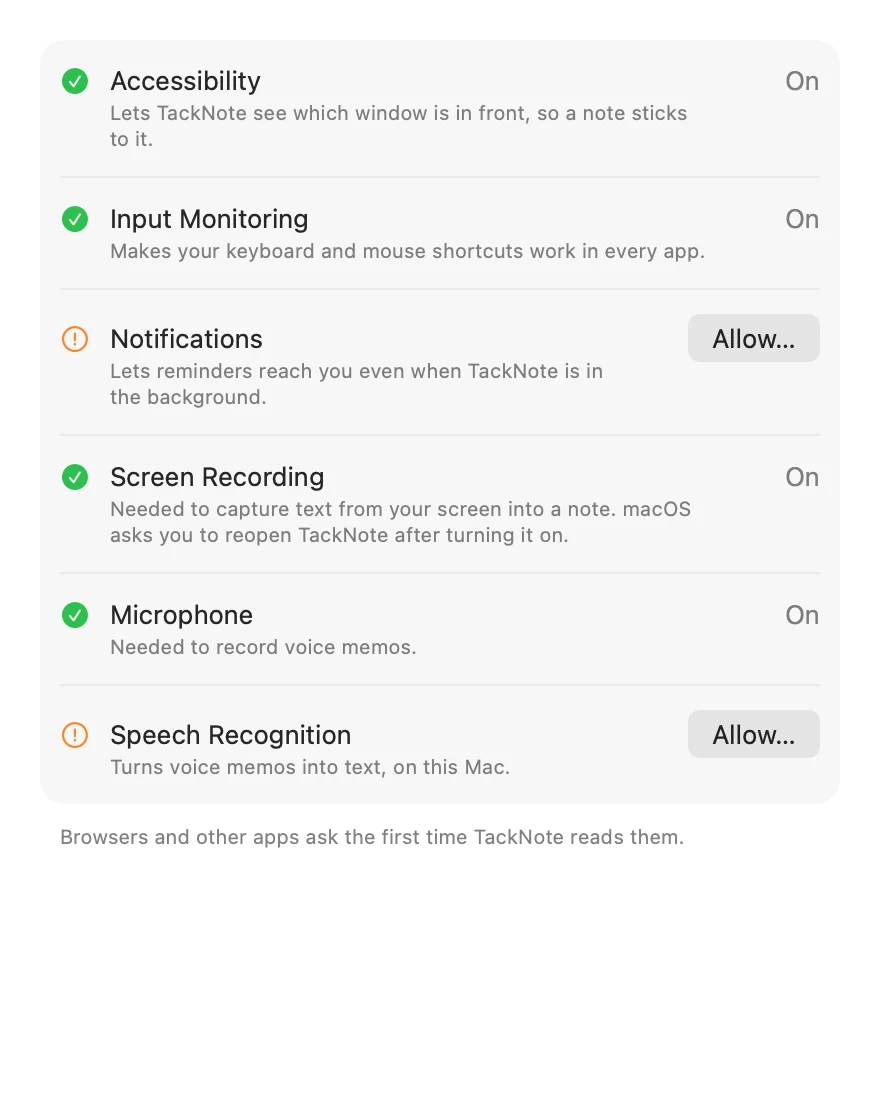
- Accessibility lets TackNote anchor a note to the right window and show or hide it.
- Automation lets a note read the active browser tab's address so it can reopen the page. Finder, Mail and some other apps ask the same way the first time TackNote reads them.
- Input Monitoring lets your keyboard and mouse shortcuts work even when another app is in front.
- Notifications let reminders reach you when TackNote is in the background.
- Screen Recording is needed to capture text and pictures from your screen into a note. macOS asks you to reopen TackNote after you turn it on.
- Microphone and Speech Recognition power voice memos and their transcription.
You can grant these when prompted, or later in System Settings > Privacy & Security.
TackNote's own Settings now has a Permissions tab that lists every permission it uses, shows which ones are on, explains what each one is for, and takes you straight to the right place to turn on any that are off. If you dismissed a prompt when you first installed TackNote, that tab is how you get back to it.
18 Pro tips
A few power moves once you have the basics down:
Put it on a spare mouse button. Map your stick shortcut to an unused button on your mouse. Now a note is one thumb-click away, without ever reaching for the keyboard or breaking your flow.
Group everything into Projects. File related notes into a project, then nest sub-folders inside TackBoard for bigger efforts. A busy board stays calm, and you can focus on one piece of work at a time.
Lock anything sensitive. Mark a note private and it stays blurred until Touch ID. Passwords, client details, and personal notes never show at a glance, even with your screen shared or someone reading over your shoulder.
Bind to a single sheet. In Google Sheets, stick the note to the exact tab rather than the whole file. Each sheet then carries its own note, so a big workbook never gets one giant sticky.
Click the pill to teleport. The little binding pill on a note is a shortcut back to its home. One click reopens the page or brings the window forward, so you never hunt for where a note belongs.
Talk when your hands are busy. Record a voice memo straight into a note instead of typing. It transcribes on your Mac where supported, so you get searchable text.
Let TackBoard find it for you. Forgot where you stuck a note? Open TackBoard instead of retracing your steps. Everything is on one corkboard, and grouping and collapsing lets you zero in fast.
Make the skin a cue. Use a Glass note over design work so the canvas shows through, and Paper for long reading. Over time the look of a note tells you what it is before you even read it.
19 Getting help
Stuck, or have an idea? We would love to hear from you. Use Send Feedback from the menu, or email support@tacknote.app. The FAQ answers the most common questions, and the changelog tracks what is new in each version. User Guide in the menu opens this page, Show Walkthrough replays the tour, and Re-enable All Tips brings back any hints you dismissed.