01 What TackNote Lite is
TackNote Lite puts sticky notes on web pages. Tack a note to a page, or to a whole site, and it stays there. Leave the page and the note steps aside. Come back and it is waiting, right where you left it.
It is a separate, lighter app from TackNote for Mac and Windows, which sticks notes to any app, file or folder on your computer. TackNote Lite lives only in your browser.
02 Installing it
- Open TackNote Lite in the Chrome Web Store and click Add to Chrome.
- Chrome does not ask for access to your sites when you install. A welcome page opens with the first steps. TackNote Lite only reads a page's address and title, and it never sends anything anywhere. See Privacy.
- Pin it: click the puzzle piece in Chrome's toolbar and pin TackNote Lite, so its icon and note count are always in view.
03 Your first note
- Open the page you want to write about.
- Press Option+Shift+N on a Mac or Alt+Shift+K on Windows and Linux. On a Chromebook, right-click the page and choose Tack a note to this page; right-click works on every computer. Or click the TackNote Lite icon and choose + Note on this page.
- The first time you add a note on a site, Chrome asks to let TackNote Lite work there. Choose Allow, and that site's notes come back on their own every time you return.
- Right-clicking selected text, a link or a picture shows Tack a note to this page too.
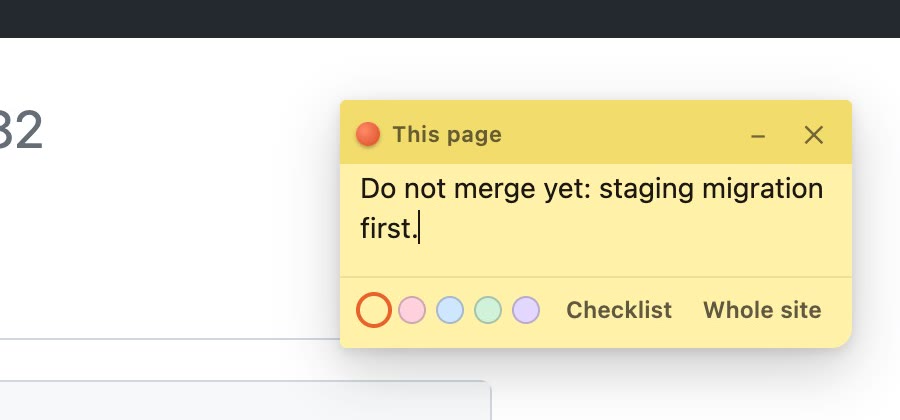
- Start typing. There is nothing to save; every word is kept as you type. While you type in a note, the page's own keyboard shortcuts stay out of the way.
The icon in your toolbar shows how many notes the page you are on has.
04 Everything on a note
- Move it by dragging its top bar. It remembers where you put it.
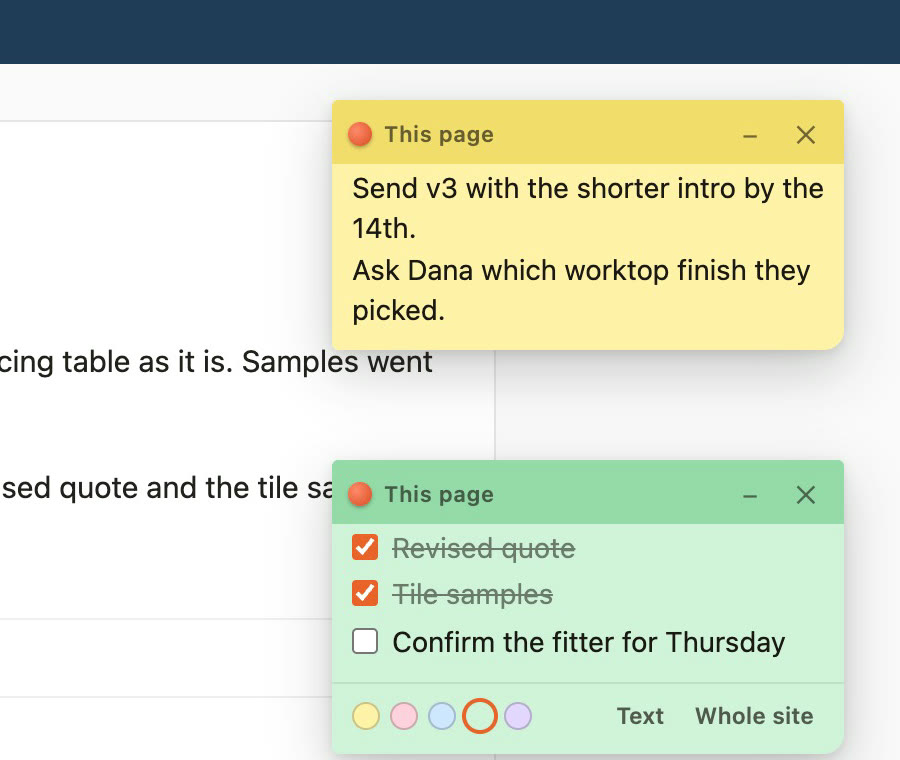
- Colours: hover over the note to see five colour dots along the bottom. One click changes it.
- Checklist: click Checklist to turn each line into an item you can tick. Press Return for a new item, and Backspace on an empty item to remove it. Text turns it back into one line per item, without losing a word; the ticks are not kept.
- This page or the whole site: a new note belongs to the exact page you are on. Click Whole site to show it on every page of that site, and Just this page to undo that. The label on the note's bar tells you which it is.
- Fold it away: the – button collapses a note to its bar. Click ▸ to open it again.
- Delete it: the ✕ button. If the note has anything written on it, TackNote Lite asks first.
05 Which page a note belongs to
A note belongs to a page's address. A few details decide what counts as the same page:
- The part of the address after a ? counts only when it names the page, like a video, a product or a post. So each video or product gets its own note.
- Tracking tags, searches, sort orders and filters after the ? are left out, so they do not split one page into many. Anything that could be private, like a login code, a checkout or session token or an email address, is left out too, so a note never keeps it.
- A # that jumps to a heading is ignored too. But in web apps that keep the real page after the #, like web email, each message or view gets its own note.
- A note set to Whole site shows on every page of that site.
On sites that change pages without reloading, notes follow along as you move around. A note you change in one tab updates in every other tab showing it.
06 The board
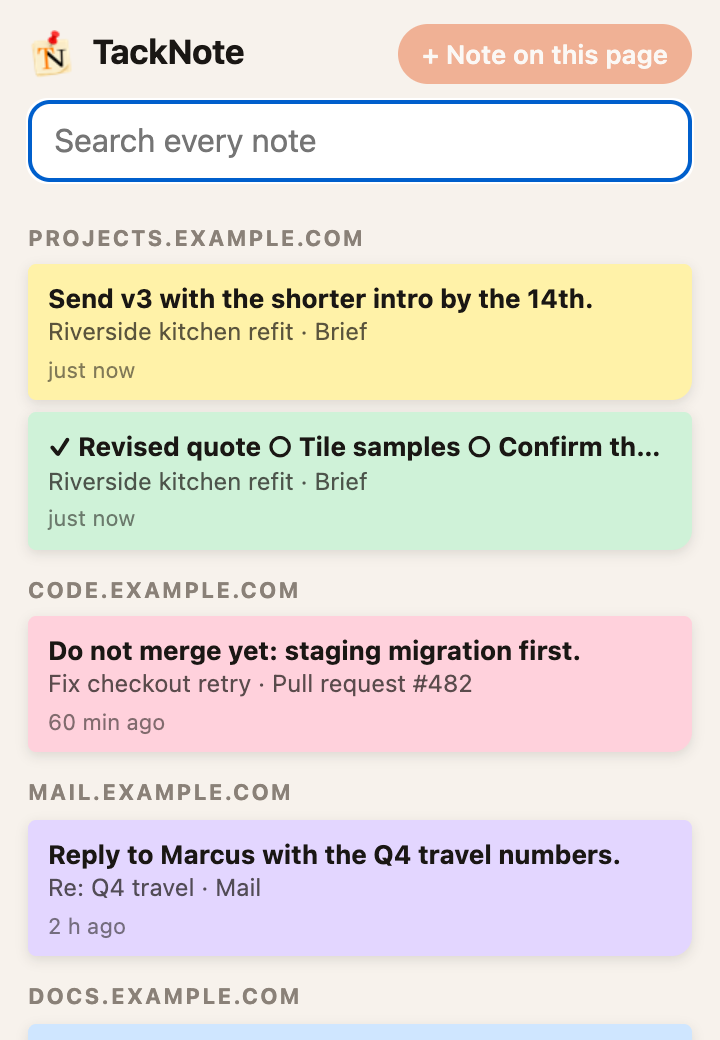
Click the TackNote Lite icon in your toolbar to open the board: every note you have, most recently changed first.
- On this page comes first, with the notes for the page you are on.
- Waiting in your open tabs comes next: each of your other open tabs that has notes, tagged with how many (for example 2 notes), so you can see which tabs have something waiting.
- Every other note follows, grouped by site.
- Type in Search every note to find any word, in any note, along with its page's title and address.
- Click a note to go straight back to its page. If that page is already open in a tab, TackNote Lite switches to it.
- + Note on this page tacks a note to the page you are on.
The bottom of the board shows how many of your free notes you have used, with Unlock. Once you have unlocked, it shows Settings instead.
07 Free notes and unlocking
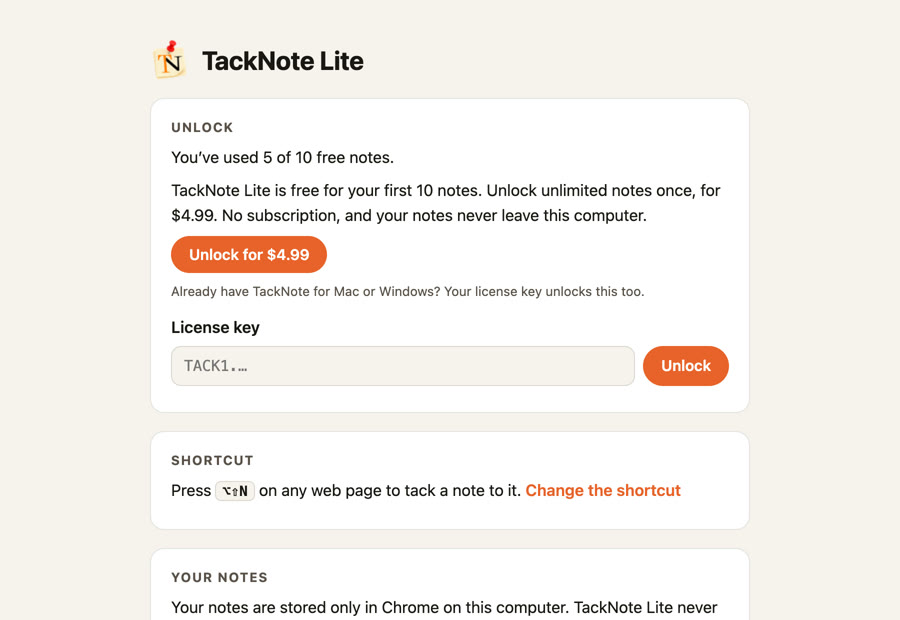
Your first 25 notes are free, for as long as you like. Every note you make counts toward the 25, including ones you later delete. Restoring a backup can raise the count to the number of notes you then have. The board shows how many you have used.
To add more, unlock TackNote Lite once for $4.99. No subscription. At the 26th note, TackNote Lite shows an unlock card instead; every note you already have keeps working.
- Click Unlock at the bottom of the board, or Unlock TackNote Lite on the unlock card. Either opens TackNote Lite's settings. You can also right-click the TackNote Lite icon in your toolbar and choose Options.
- Click Unlock for $4.99, or buy the unlock from tacknote.app/lite. Your key arrives by email.
- Paste the key into License key and click Unlock. The key is checked on your computer, offline. Keys start with TACK1.
Lost your key? Resend it here with the email address you bought with.
08 Backups and a new computer
Your notes live only in Chrome on this computer, so a backup is the only copy anywhere else. Chrome does not sync them between computers.
- Save a backup: open the settings and click Save a backup. You get one file with every note, named TackNote Lite backup and the date.
- Restore it: on the new computer, or after reinstalling, click Restore a backup and choose the file. Restoring adds its notes; it never deletes any you already have. A note that is already here is replaced by its copy from the backup.
09 Changing the shortcut
The settings show the shortcut you have now. Click Change the shortcut. Chrome opens its own shortcuts page, where you can set your own keys for Tack a note to this page.
TackNote Lite starts with Option+Shift+N on a Mac and Alt+Shift+K on Windows and Linux, because Chrome keeps Alt+Shift+N for itself there. On a Chromebook, right-click the page.
If no shortcut is set, for example because another extension already uses those keys, the welcome page, the board and the settings say why and start with right-click. Click Set a shortcut to choose your own keys.
10 Privacy
TackNote Lite has no account, no analytics and no servers, and it makes no network requests of its own. Your notes, the address and title of their pages, and your unlock key are stored in Chrome on your computer and nowhere else. They are not encrypted by TackNote Lite; they are protected by your computer account, like the rest of your Chrome profile.
The one thing kept in Chrome's sync storage is a single number: how many notes you have created, so the free count survives reinstalling the extension. If you use Chrome sync, Chrome keeps that number with your Google account. No note, page address or title is ever in it, and it never reaches us.
It runs only on the sites you allow, and only to check the page's address against your saved notes. It does not read or record anything else on the page. To take a site back, open the settings and click Remove next to it under Allowed sites. TackNote Lite does not run in Incognito windows. The full details are in our privacy policy.
11 If something is not right
- A ↻ shows on the icon and no note appears. The page was open before you installed TackNote Lite. Reload it once and try again. Pages opened after installing work straight away.
- A ✕ shows on the icon and the board says notes can't be added on this page. That page is one Chrome protects, like the Chrome Web Store, Settings, the New Tab page or another extension's page. Chrome does not let any extension add notes there. Open any website and try again.
- The shortcut does nothing. Right-click the page and choose Tack a note to this page, or set your own shortcut (see Changing the shortcut).
- A note is gone after you reload the page. TackNote Lite is not allowed on that site yet. Click Allow on the note, or add a note there again and choose Allow when Chrome asks.
- A note is missing. Open the board and search for it. If its page's address changed, click the note to open where it was. A note set to Just this page will not show on other pages of the site.
- The same note shows on several pages. Those pages differ only in tracking tags, searches or sort orders, which TackNote Lite treats as one page (see Which page a note belongs to), or the note is set to Whole site.
- The shortcut clashes with another extension. Pick different keys; see Changing the shortcut.
12 Getting help
Email support@tacknote.app. We read every message.